Sales Representative List
By assigning sales representatives to your customers, you can filter and track each representative's impact on customers and their sales performance directly from the customer list.
To access this tab; Admin Panel > Customers > Sales Representative List

1. Adding a Sales Representative
To define a new sales representative, click the + button in the top right corner of the screen.

Fill in the following fields in the form that opens:
| Field | Description |
|---|---|
| Name | The sales representative's name |
| Phone | The sales representative's phone number |
After entering the information, press the Save button.
2. Editing a Sales Representative
To update an existing sales representative, click the Edit button next to the relevant representative in the list.

Update the name and phone information and press the Save button. To delete the representative, you can use the trash icon in the top right corner.
3. Viewing Customers Assigned to a Sales Representative
To see customers assigned to a sales representative, click the link icon in the Assigned Customers column.
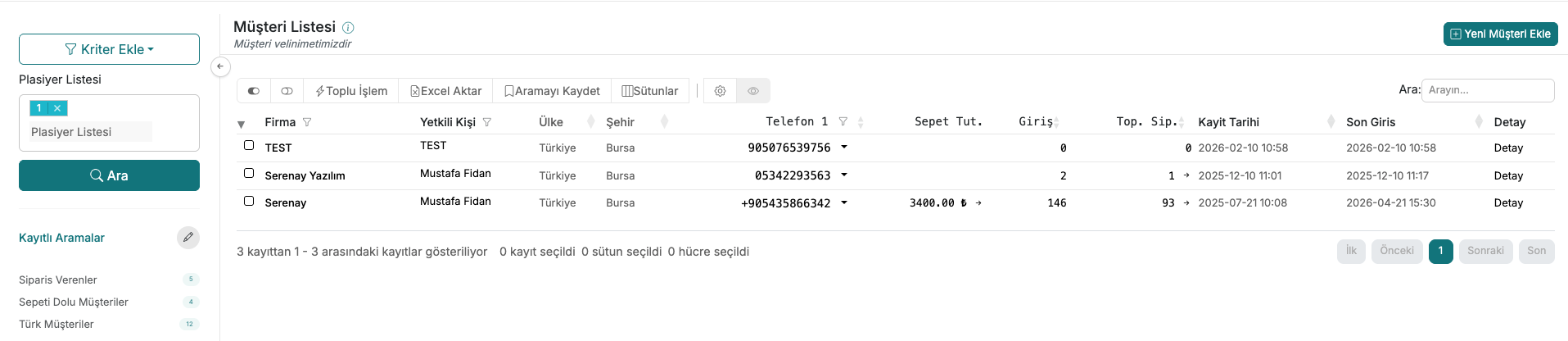
The Customers page opens with an automatic filter applied for the selected representative, listing all customers linked to that representative.
Contact and Support
If you encounter any issues or need assistance, you can contact our support team. We will be happy to help you as soon as possible.