Prepare Order
When a customer purchases a product, the order first appears in the Admin Panel > Orders tab. The actions taken by the admin from here initiate the order preparation process.
1. Complete Order Button
When the admin selects an order from the order list in the admin panel and clicks the "Complete Order" button, it moves the order to the Prepare Order tab. The order is now considered to have entered the preparation process.
2. Prepare Order Tab
This tab is used to manage the preparation process of the order.
- Click on the relevant order from the "Prepare Order" tab.
- The following options appear:
- Items Found: Products are ready, can proceed to shipping.
- Cancel: The ordered product can be cancelled.
- Items Not Found: The product cannot be sourced, the order can be put on hold.
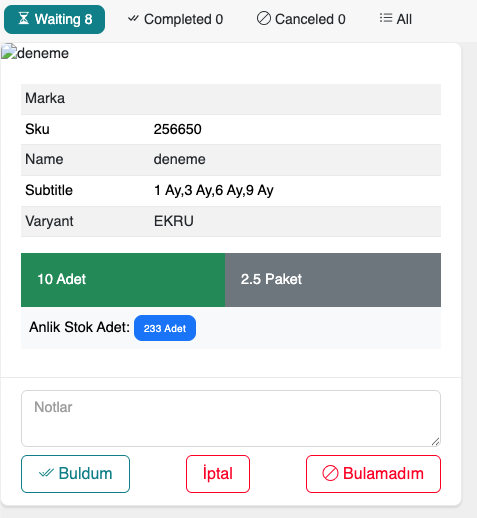
A selection is made here based on the actual stock status.
3. Prepare Order Admin Tab
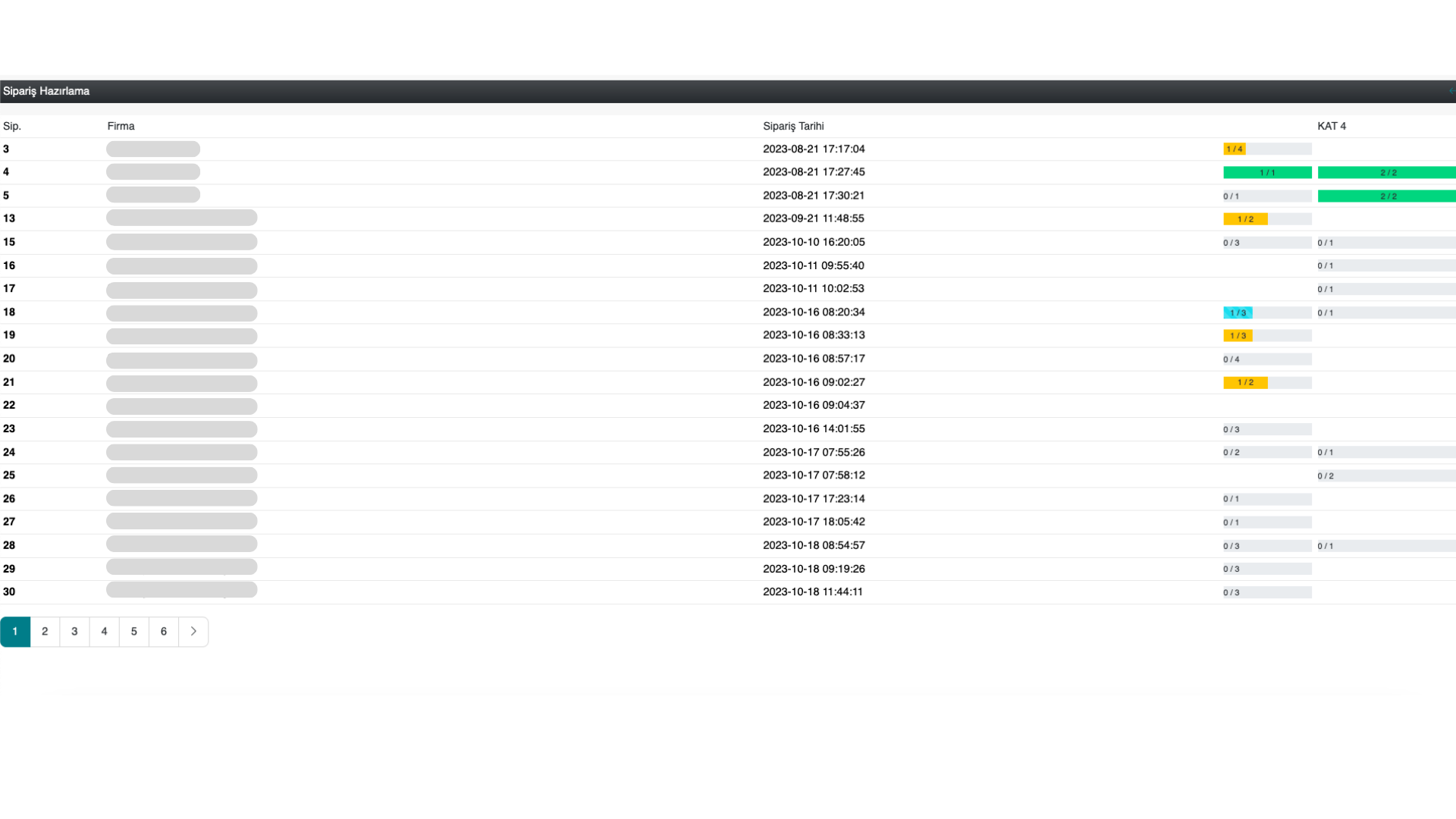
This tab is a detailed control screen exclusive to the administrator.
- The entire order preparation process is tracked.
- You can see which orders have been acted upon.
- Orders for which suppliers have moved into the preparation process are listed.
Tip
The admin can prevent disruptions in the process by regularly checking the Prepare Order Admin tab. Staying in communication with the supplier also helps ensure orders are shipped on time.