Products Without Photos
Instead of uploading product images one by one through each product page, you can upload them quickly in bulk from this screen, which lists products without photos. You can see the products that need images here and add images directly by dragging and dropping onto the relevant product, or by clicking the relevant area.
1. Accessing the Products Without Photos List
Go to Products > Products Without Photos from the admin panel.
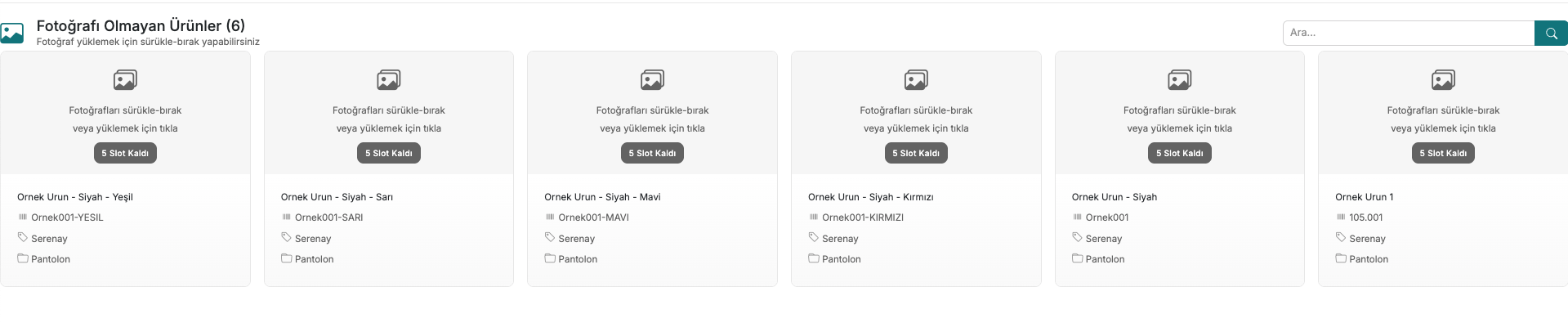
The list displays all products that have not yet had images uploaded in card view. Each card contains product information. Additionally, each product card shows how many slots are remaining; this information indicates how many more images can be added to that product.
2. Uploading an Image
Find the product you want to add an image to in the list and drag and drop the image directly onto the product card, or click the relevant area to upload.
- Select the image you want to upload from your computer.
- Drag and drop the image onto the relevant product card.
- After the image is uploaded, the card preview updates instantly.
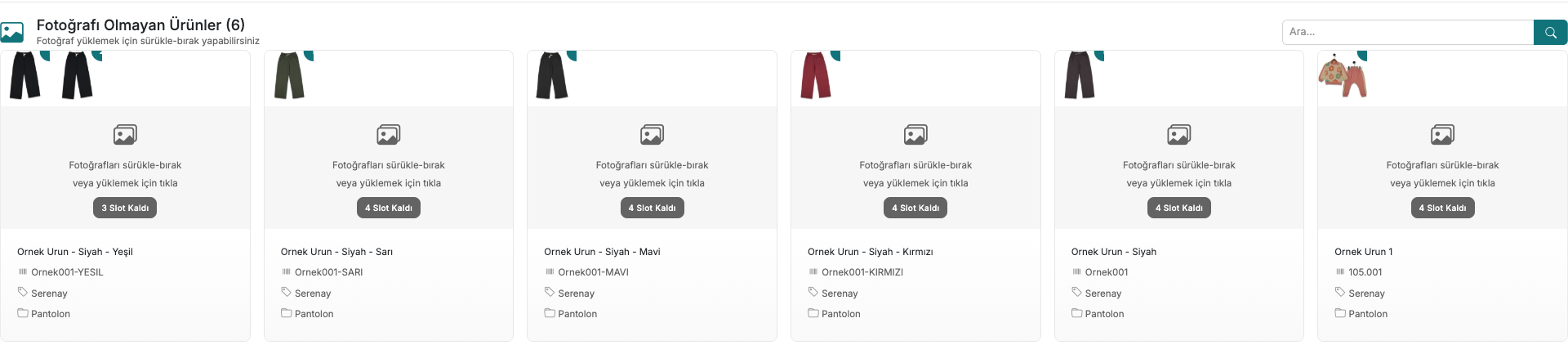
When the image is successfully uploaded, the photo starts appearing on the product card. Products for which all images have been uploaded are removed from this list and displayed with their images in the system.
FAQ (Frequently Asked Questions)
-
What formats are supported for image uploads?
You can upload images in PNG, JPG, and JPEG formats.
-
How many images can I upload per product?
The "Slots Remaining" information on each product card shows the maximum number of images that can be added to that product. Once the slot count is full, no new images can be added.
Contact and Support
If you encounter any issues or need assistance, you can contact our support team. We will be happy to assist you as soon as possible.