Google Analytics 4 (GA4) Settings
This document explains how to configure GA4 tracking via GTM.
Container File
Download the GA4 container file and import it into GTM:
Container Import
Follow the steps on the Analytics & Tagging page to import the container.
1. Getting Your GA4 Measurement ID
Step 1: Sign in to Google Analytics
Go to analytics.google.com.
Step 2: Navigate to Data Streams
- Click Admin in the left menu
- Under Property settings > Data collection and modification, click Data streams
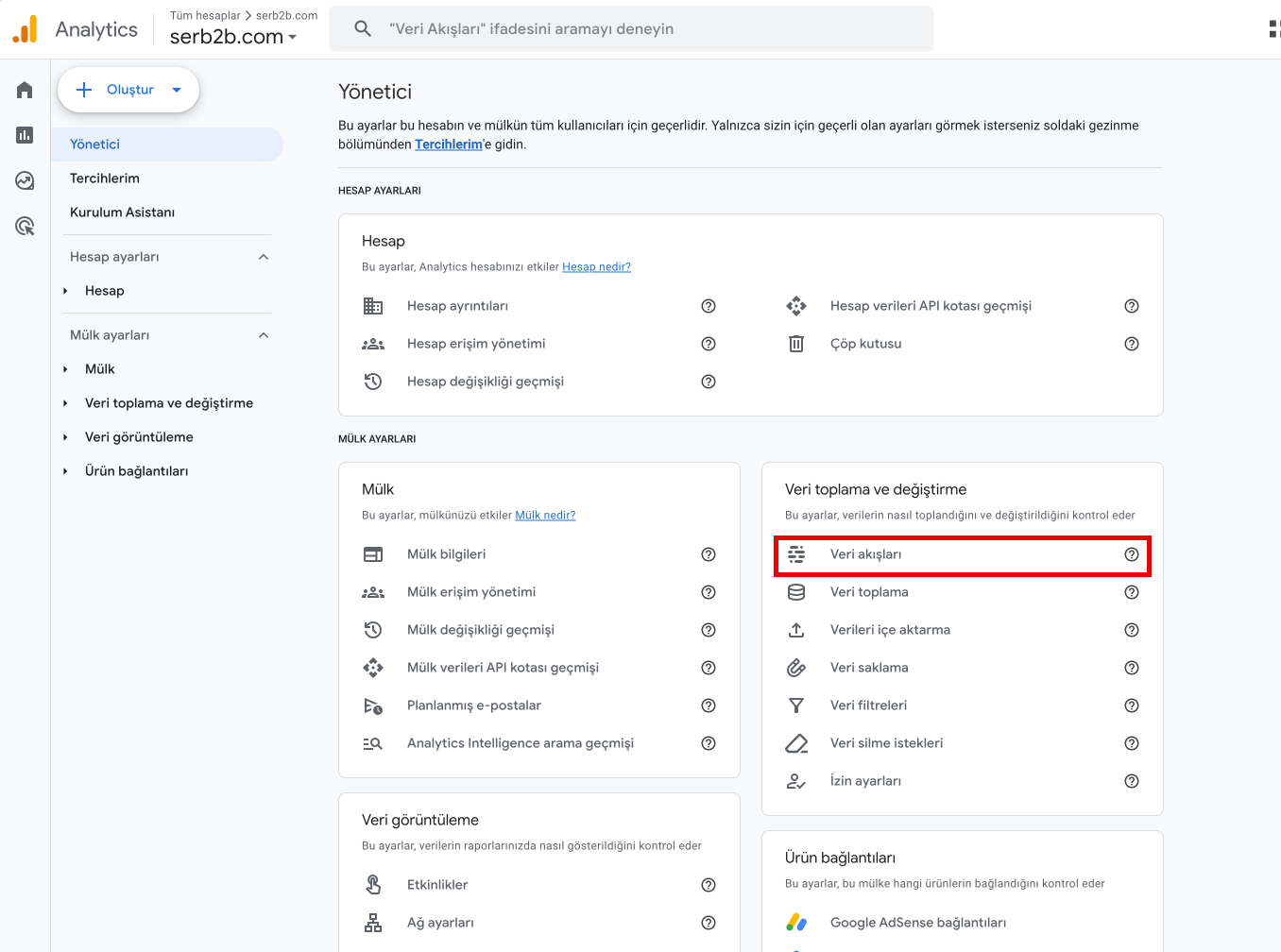
Step 3: Copy the Measurement ID
- Click on your web stream
- Copy the Measurement ID value (e.g.
G-1234567890)

Measurement ID Format
The Measurement ID starts with G-. Example: G-ABC123XYZ
2. Updating the GA4 Measurement ID in GTM
Step 1: Sign in to GTM
Go to tagmanager.google.com.
Step 2: Navigate to Variables
- Click Variables in the left menu
- Under User-Defined Variables, click GA4 Measurement ID
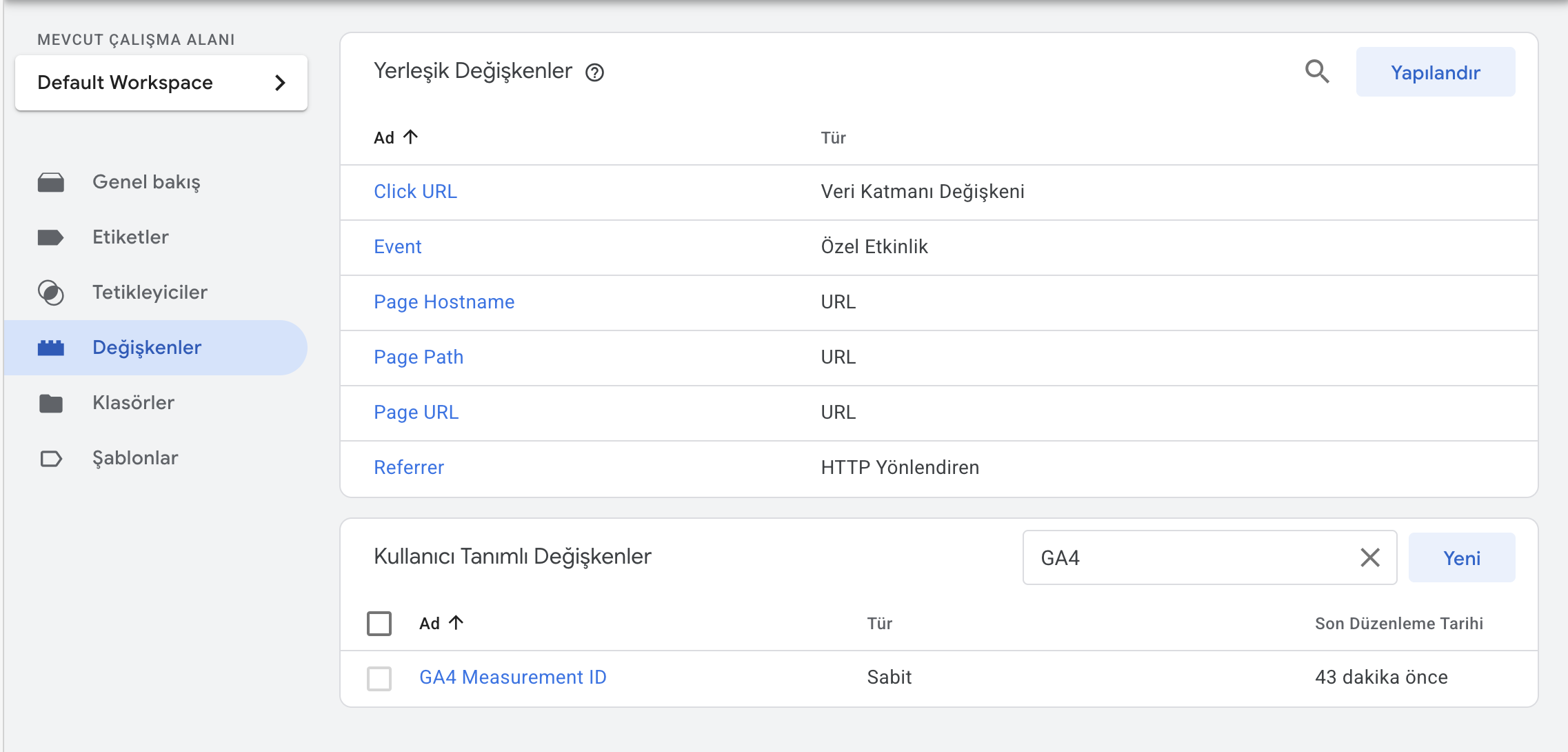
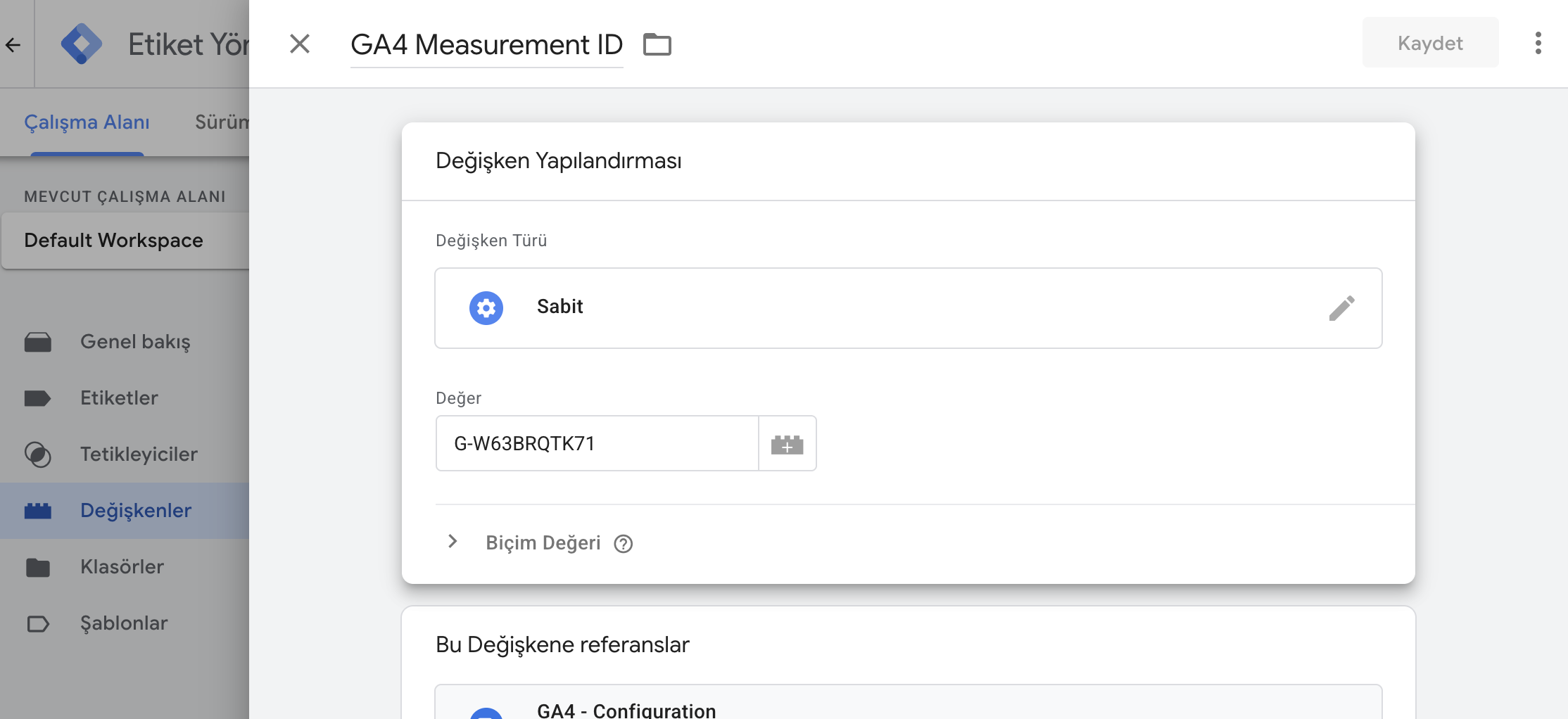
Step 3: Update the Measurement ID
- Replace the
G-XXXXXXXXXXvalue in the Value field with your own Measurement ID - Click Save
3. Testing
Preview Mode
- Click Preview in the top-right corner of GTM
- Enter your site URL and click Connect
- Browse your site and verify that events are firing in the GTM Debug panel
GA4 Realtime Report
- Go to Google Analytics > Reports > Realtime
- Check that data is coming in while browsing the site
4. Publishing
After a successful test:
- Click Submit in the top-right corner of GTM
- Enter a version name (e.g. "GA4 Setup")
- Click Publish
Tracked Events
| Event | Description |
|---|---|
page_view | Page view (automatic) |
view_item | Product detail page view |
view_item_list | Product list view |
select_item | Select product from list |
add_to_cart | Add to cart |
remove_from_cart | Remove from cart |
view_cart | Cart view |
begin_checkout | Begin checkout |
add_shipping_info | Add shipping info |
add_payment_info | Add payment info |
purchase | Purchase |
refund | Refund |
search | Search |
login | Login |
sign_up | Registration |
add_to_wishlist | Add to wishlist |
generate_lead | Lead generation |
view_promotion | Promotion view |
select_promotion | Promotion selection |
Troubleshooting
Events not appearing in GTM
- Refresh the page and restart Preview mode
- Clear the browser cache
No data in GA4
- Make sure the Measurement ID was entered correctly
- GA4 data may be delayed by 24–48 hours; check the Realtime report
Duplicate events
- Make sure the same tag has not been imported more than once