Sistem Logs
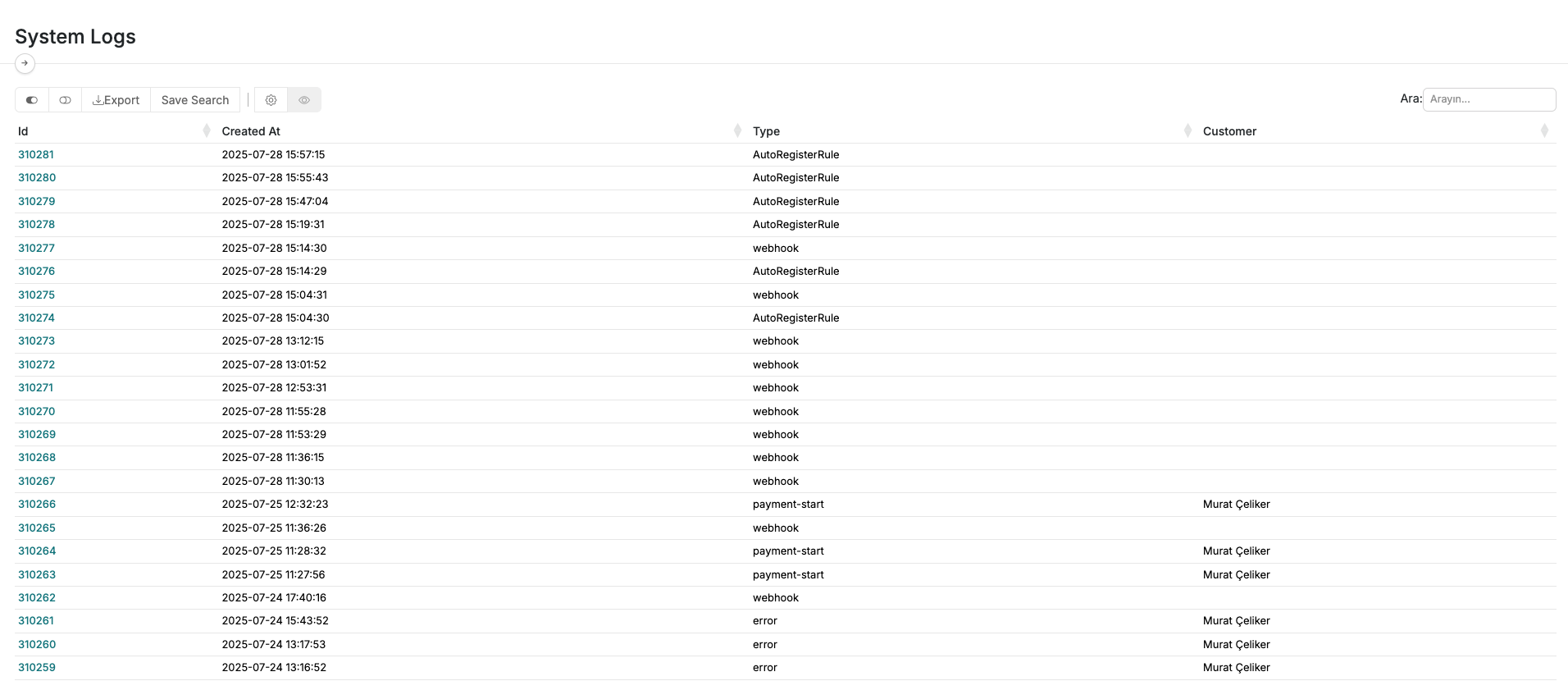
The System Logs section serves as a traceable and filterable audit panel where all important actions and activities on the platform are recorded. With this feature, you can easily see who did what and when — enabling detailed analysis whenever necessary.
1. Overview
The System Logs page keeps a complete record of all activities on your platform. It assists in various areas, from security to debugging.
1.1. System Logs Interface
2. Benefits of System Logs
System logs go beyond simple record-keeping and offer several strategic advantages:
2.1. What Are They Used For?
- Monitoring User Activity: Easily track which user performed which action and when. This helps detect authorization issues or suspicious activity.
- Troubleshooting Errors: Analyze detailed log records to trace the root cause of unexpected issues or system errors — accelerating the debugging process.
- Security and Audit Transparency: Every action is logged, providing full transparency for internal or external audits. This is crucial when reviewing security-related incidents.
- Tracking Team Responsibilities: See which team or user completed which task or initiated specific operations — improving responsibility assignment.
2.2. Key Advantages
- Time Efficiency: Instead of spending hours identifying issues, logs allow faster problem-solving.
- Ease of Auditing: Simplifies compliance with legal regulations and internal company policies.
- Traceability for Security: In the event of a security breach, trace the sequence of events and who was involved — step by step.
- Interdepartmental Transparency: Observe platform interactions between departments, promoting better collaboration.
- Retrospective Analysis: Use historical data to analyze system performance, user behavior, or operational processes.
3. Filtering and Searching Logs (Additional Info)
The System Logs panel typically includes filtering and search options such as:
- Date Range: View logs within a specific time period.
- Username: Filter actions by specific users.
- Action Type: (e.g., Login/Logout, Product Update, Order Creation, etc.)
- Status: (e.g., Successful, Failed)
- Keyword Search: Find specific information using keywords within the log entries.
These tools help you quickly find the relevant data you need from large volumes of records.