Vakıfbank Virtual POS
You can follow the steps below to complete the Vakıfbank Virtual POS integration.
1. Defining a POS in the serB2B Panel
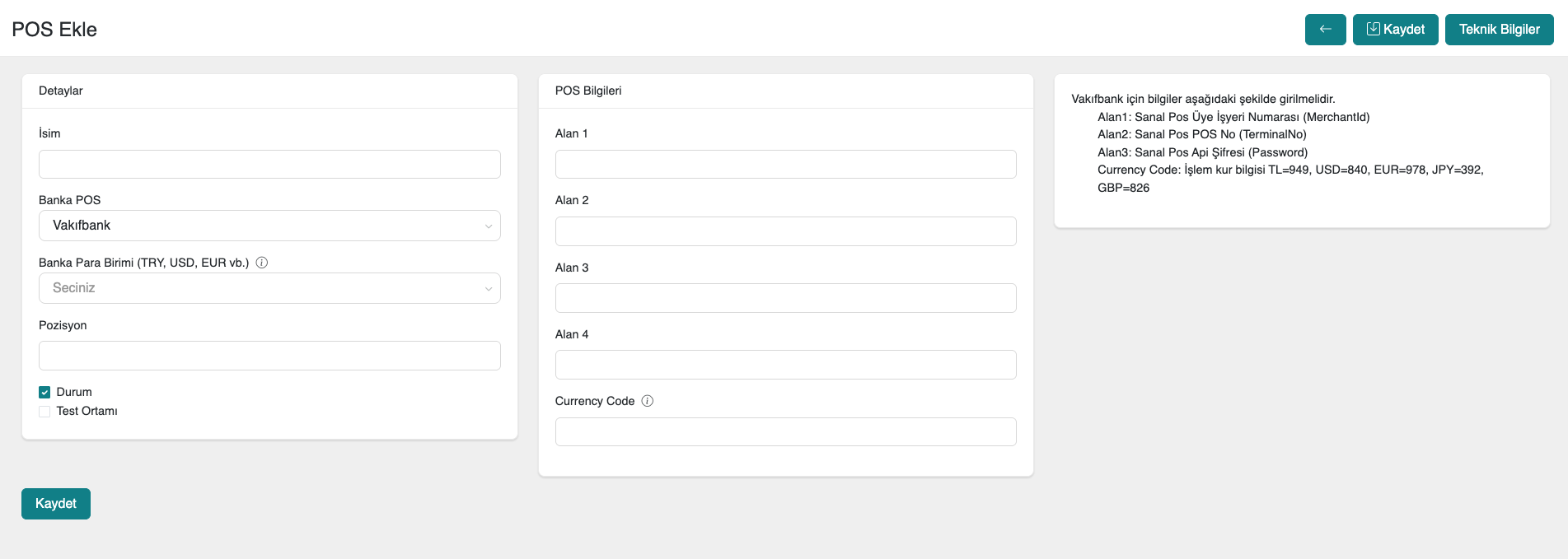
First, in the serB2B e-commerce admin panel, click on Settings > Payment Settings > + to be directed to the new virtual POS setup screen.
2. Obtaining the Required Information
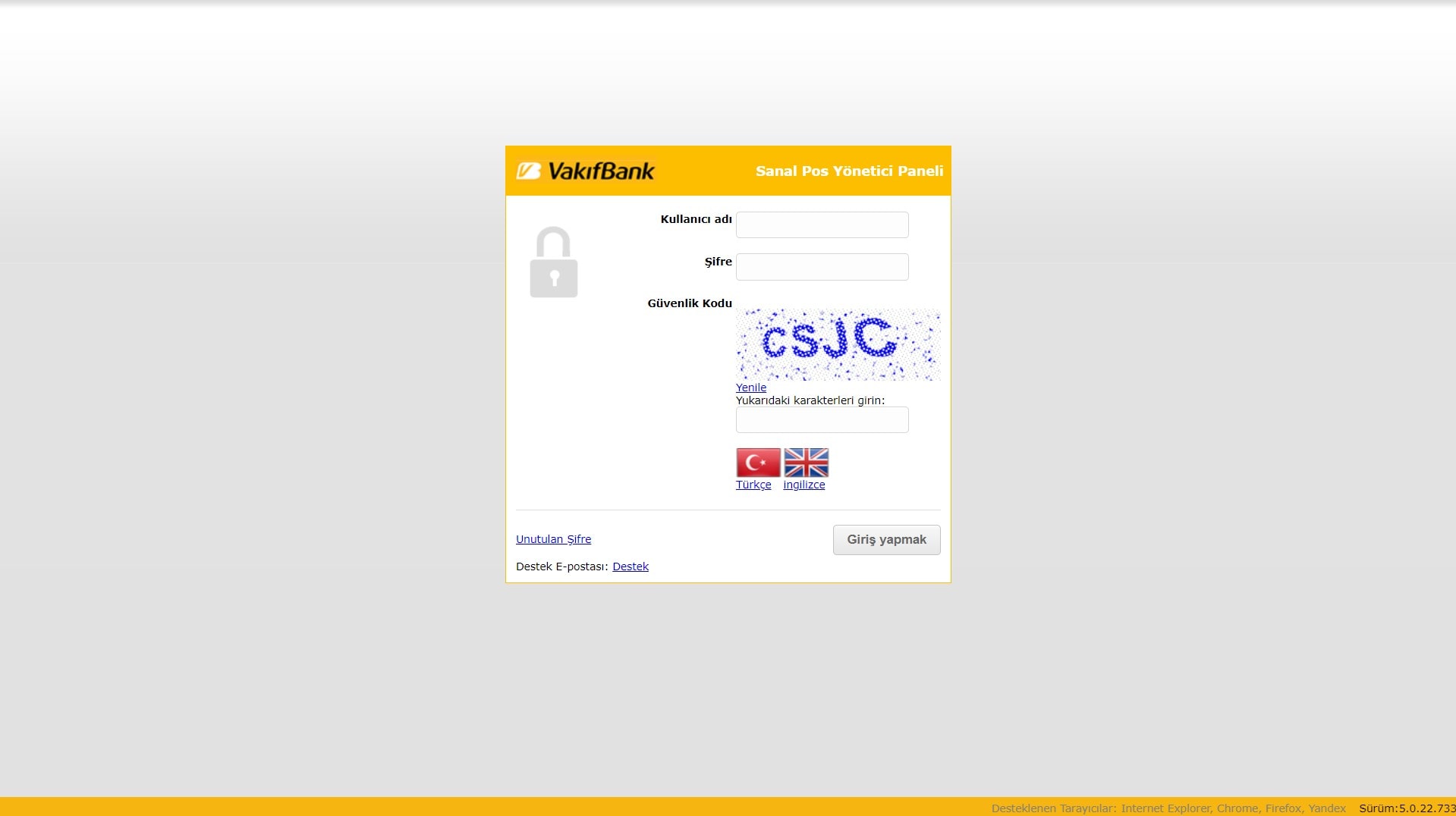
Next, you need to log in to the Vakıfbank Virtual POS Management Screen.
- After the Vakıfbank Virtual POS application is approved, the bank will send the customer an email containing information such as "Username" and "Password". All the information needed to access the POS Management screen will be complete. Using the information provided in the email, log in to the virtual POS definition screen at https://onlineodeme.vakifbank.com.tr/AdminUI/Account/Login.
After logging in to the bank panel, you need to obtain the following for integration with your serB2B site:
- Virtual POS Merchant ID
- Virtual POS Terminal Number (TerminalNo)
- Virtual POS API Password (Password)
2.1. Steps to Follow in the Vakıfbank Panel
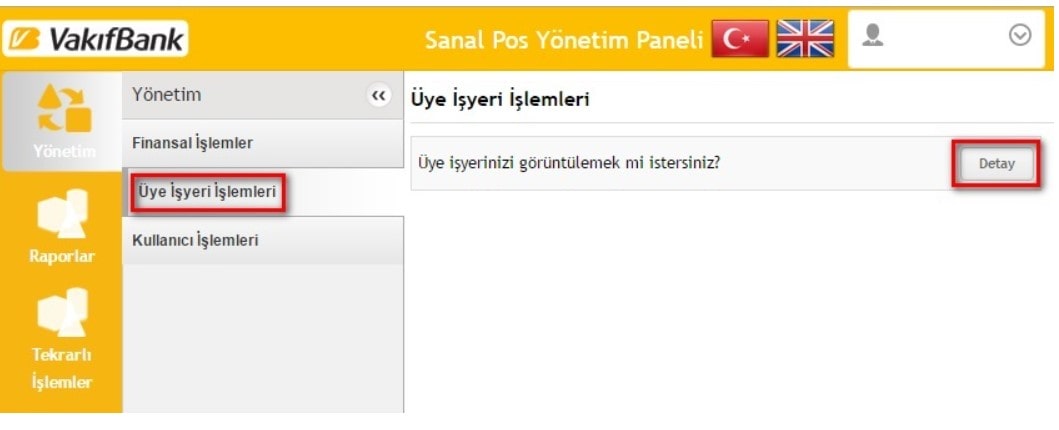
- After entering the virtual POS management screen, go to the Merchant Operations sub-menu under the Management menu as shown in the screenshot below. Then click the Detail button on this screen to enter the menu.
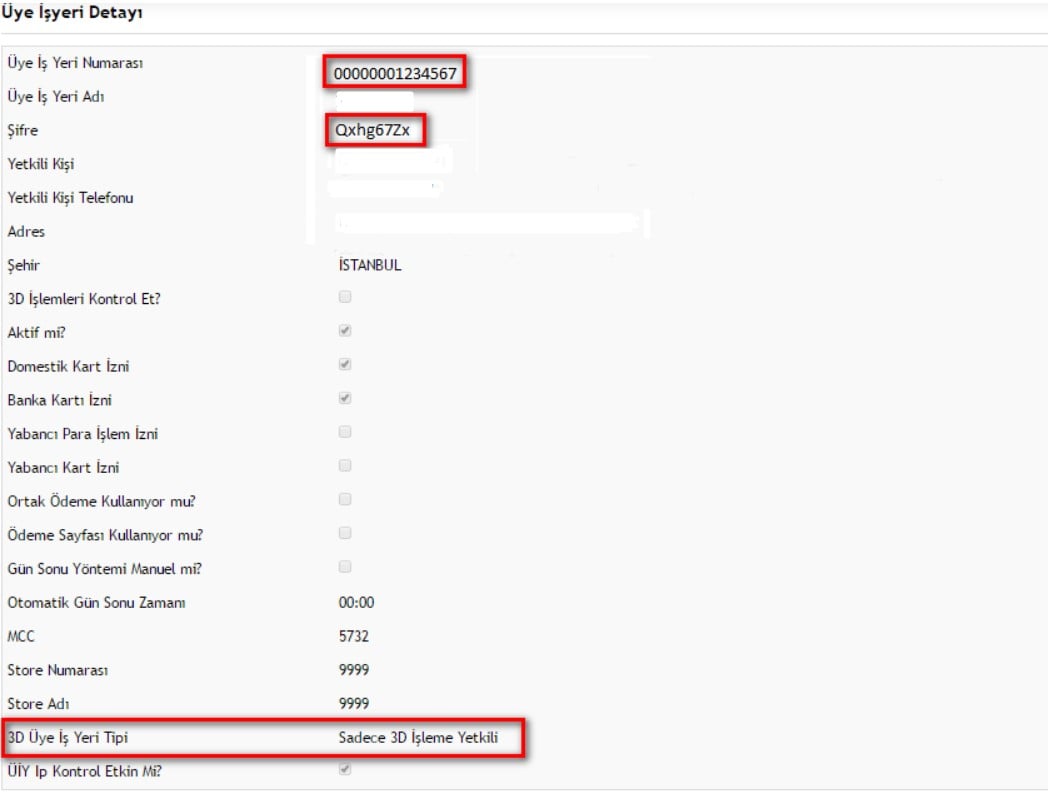
- The Merchant ID, Password, and whether 3D Secure is available can be seen on the screen below.
- After obtaining this information from the Vakıfbank panel, switch to the serB2B admin panel.
2.2. Steps to Follow in the serB2B Panel
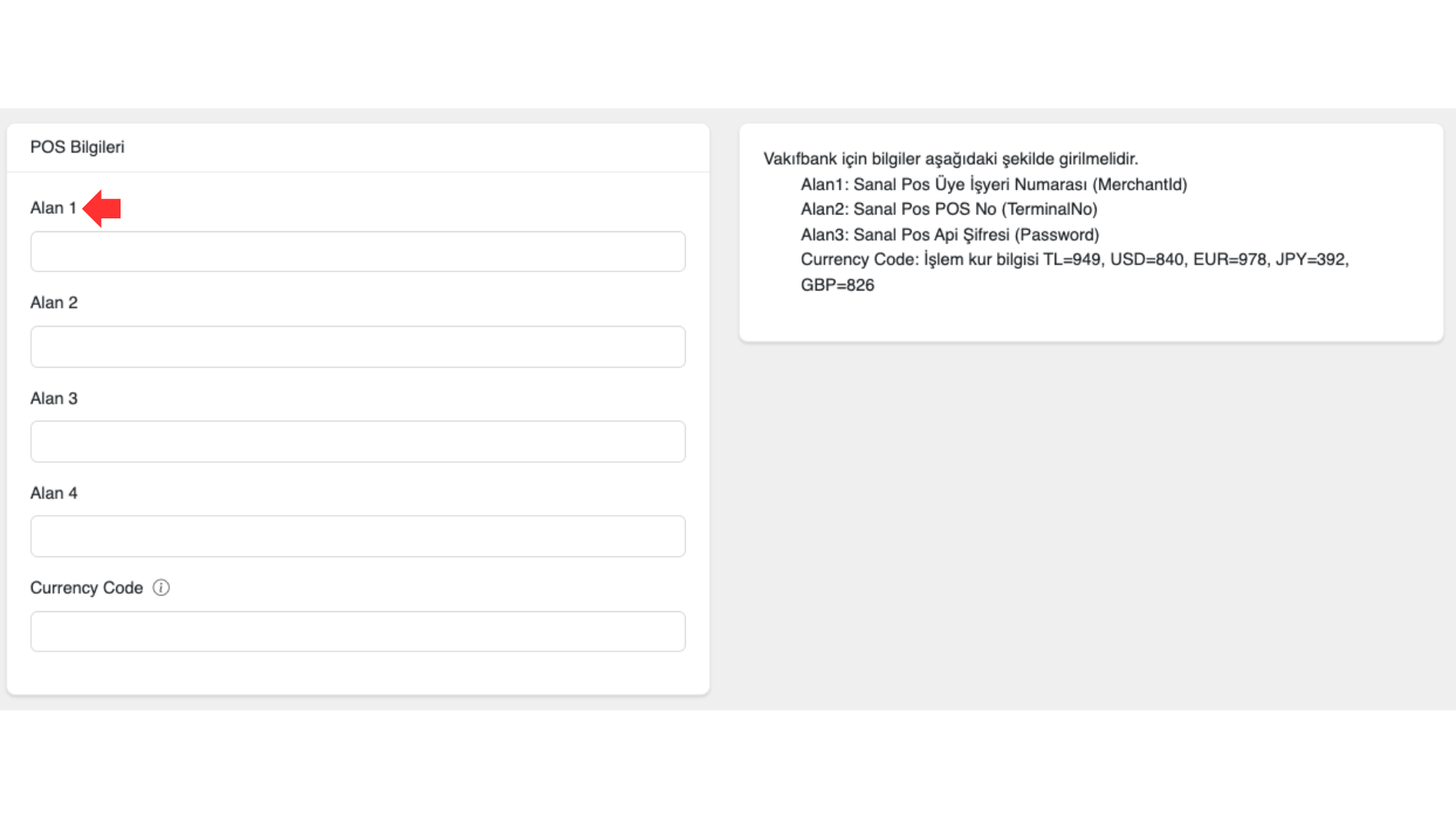
- Paste the Virtual POS Merchant ID you obtained into the Field 1 area in the serB2B panel.
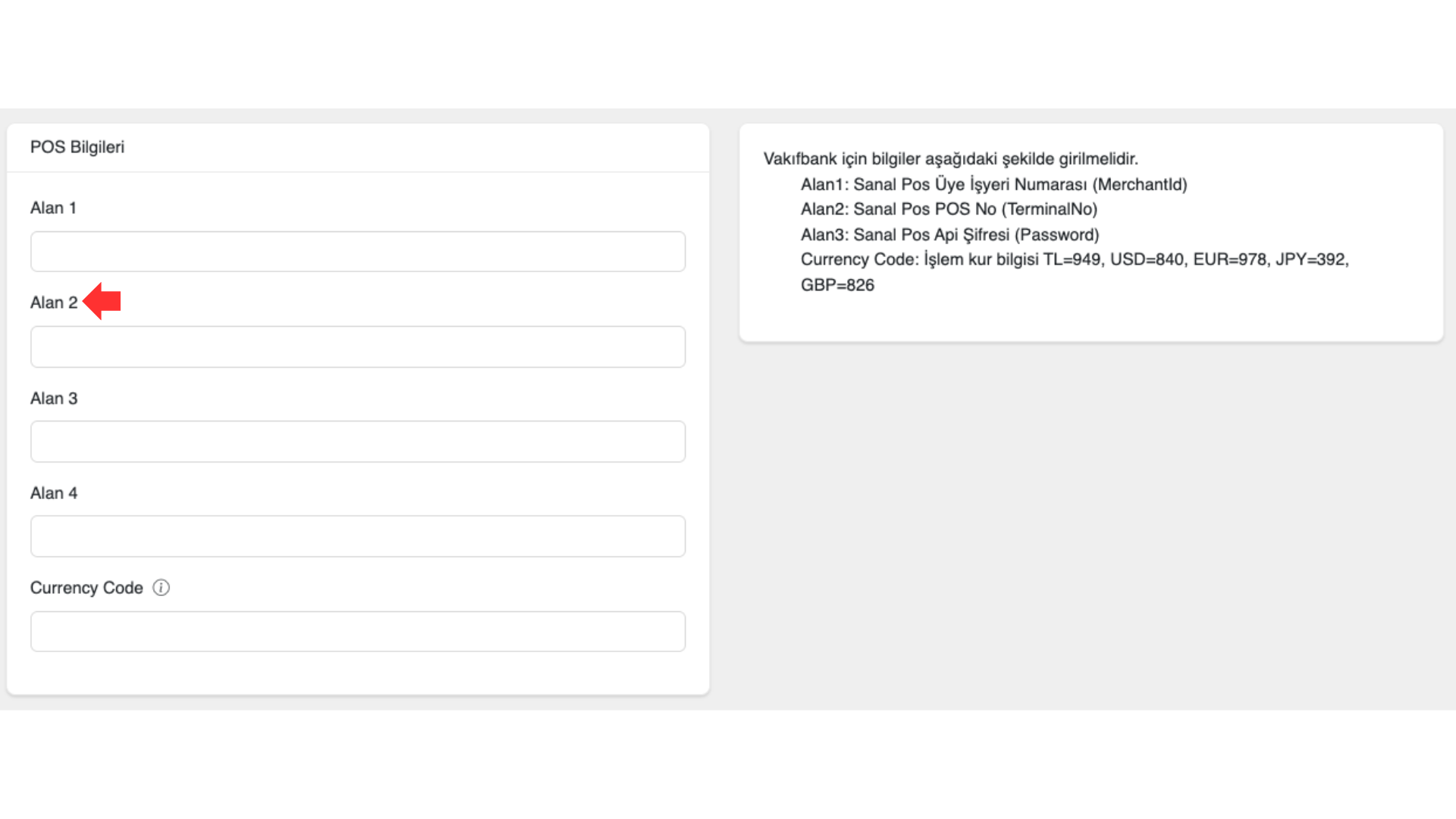
- Paste the Virtual POS Terminal Number (TerminalNo) you obtained into the Field 2 area in the serB2B panel.
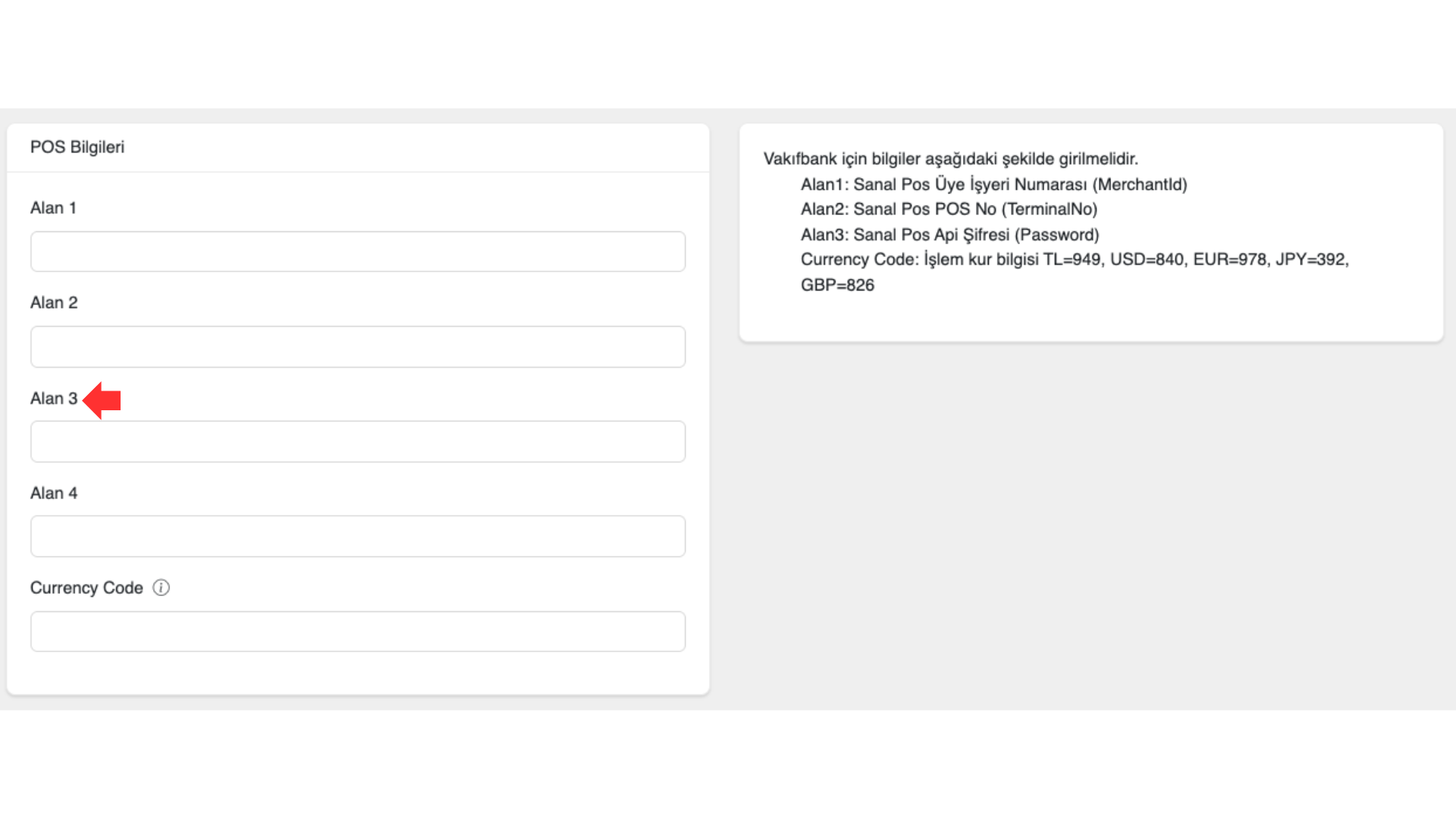
- Paste the Virtual POS API Password (Password) you obtained into the Field 3 area in the serB2B panel.
2.3. Activating the Virtual POS
- Enter the defined currency code. For example, enter 949 for Turkish Lira.
- Click the Save button to save your settings.
3. Virtual POS Configuration Table
- Select Vakıfbank from the Bank POS field.
| Field | Description |
|---|---|
| Field 1 | Virtual POS Merchant ID |
| Field 2 | Virtual POS Terminal Number (TerminalNo) |
| Field 3 | Virtual POS API Password (Password) |
| Currency Code | The Virtual POS currency information must be entered as follows: |
- 949 for TRY | |
- 840 for USD | |
- 978 for EUR |