Installment Management
Installment Management allows you to add, edit, and delete installment options for the bank virtual POS systems defined in your serB2B system. By defining commission rates and formula-based conditions for installment options, you can make payment processes more flexible.
Viewing Installment Options
To view the existing installment options for a defined bank, go to Settings > Payment Settings and click the Installment Management link for the relevant bank.
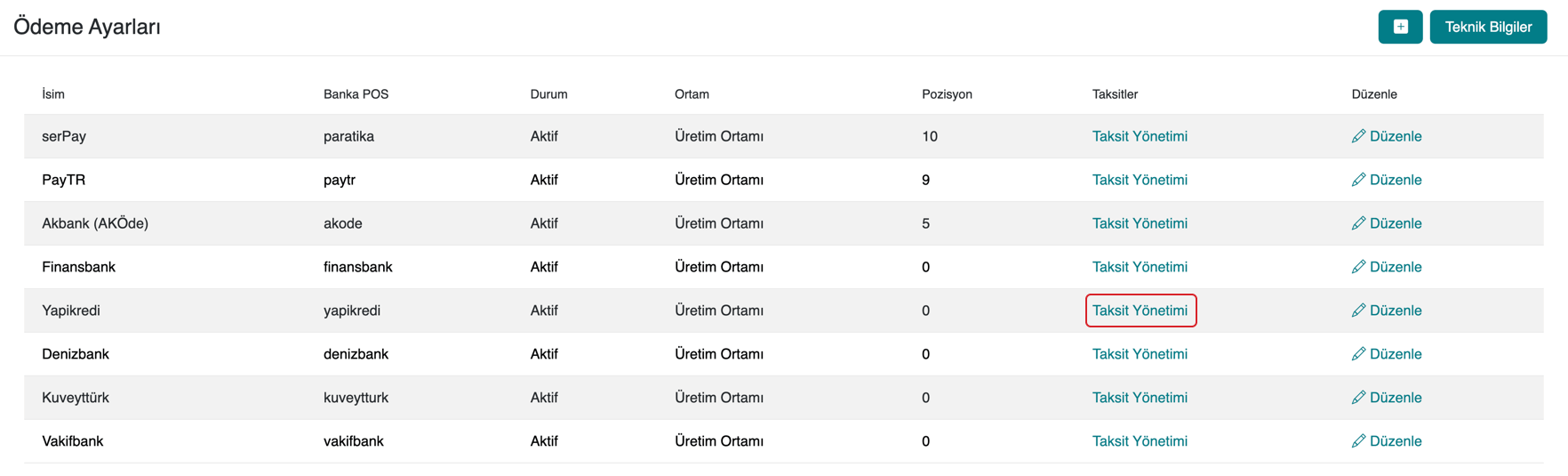
The screen that opens lists all installment options for that bank. Each row shows the installment name, number of installments, commission rate, and formula (if any).

The information in the image is for example purposes. Check the Installment Management section of the relevant bank in your own system for accurate installment information.
Adding a New Installment Option
To add a new installment option for a bank, go to Settings > Payment Settings, click the Installment Management link for the relevant bank, and click the + icon in the top-right corner of the screen that opens.
Fill in the fields in the form that opens and click the Save button.
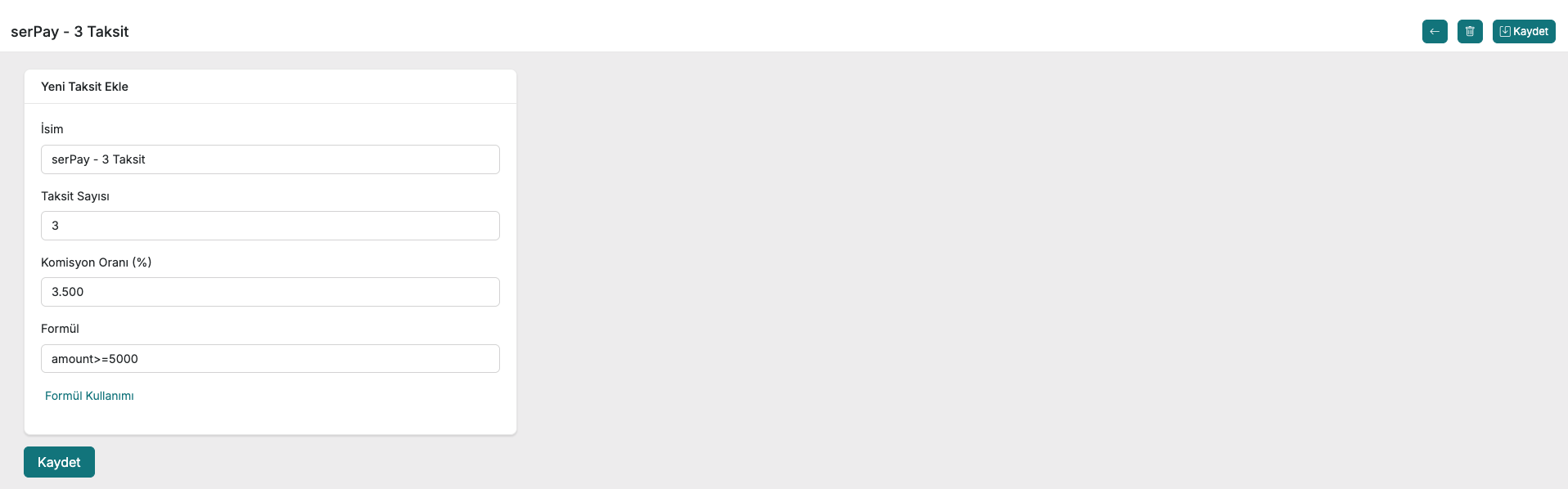
| Field | Description |
|---|---|
| Name | The name of the installment option (e.g. "serPay - 3 Installments") |
| Number of Installments | How many installments to split into (enter 1 for single payment) |
| Commission Rate (%) | The commission percentage to be paid to the bank |
| Formula | The condition that determines whether the installment option is shown (optional) |
For single-payment transactions, enter 0 (zero) in the Number of Installments field.
Using Formulas
The formula field allows you to define the conditions under which an installment option is shown to customers. It uses the Symfony Expression Language syntax.
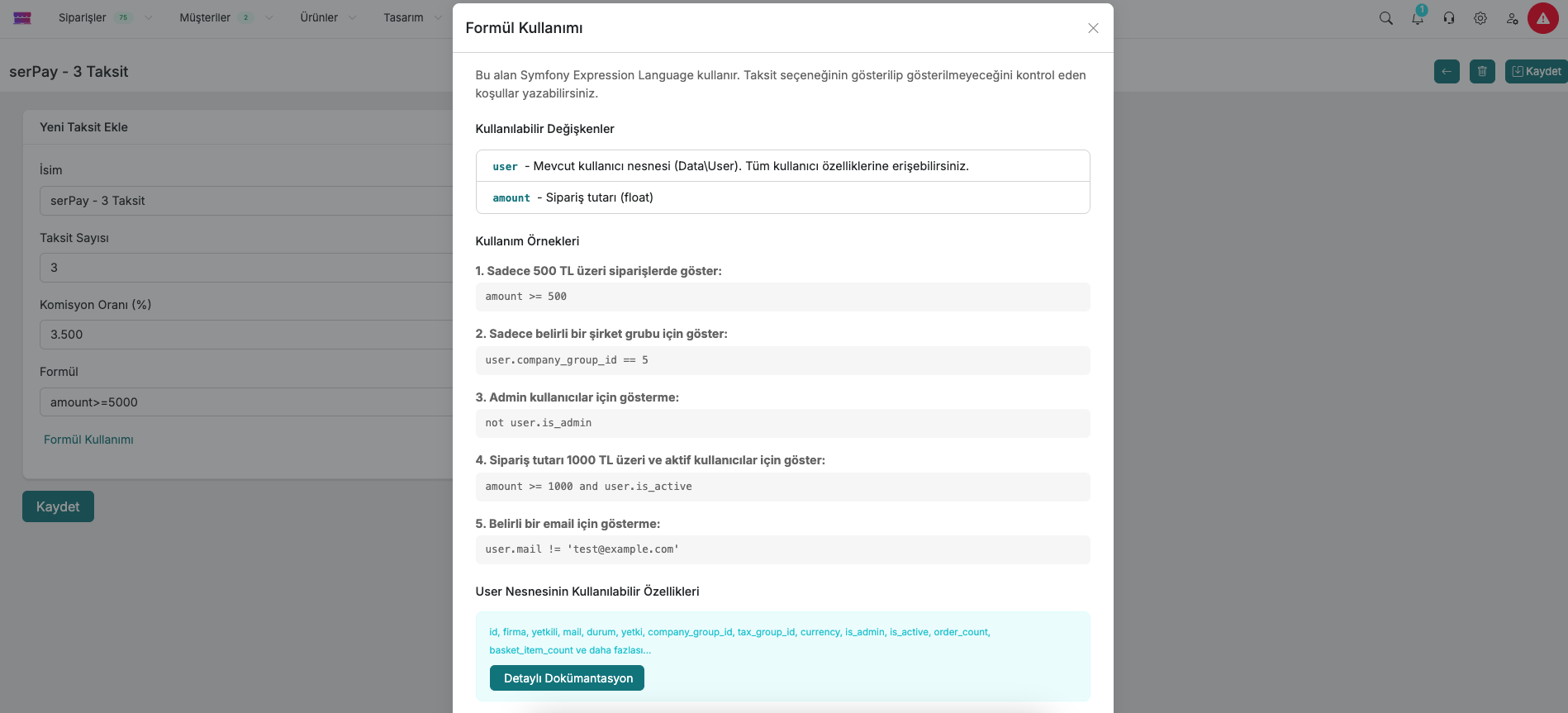
Available Variables
| Variable | Description |
|---|---|
user | Current user object (Data\User). All user properties are accessible. |
amount | Order amount (float) |
Usage Examples
| Scenario | Formula |
|---|---|
| Show only for orders over 500 TRY | amount >= 500 |
| Show only for a specific company group | user.company_group_id == 5 |
| Do not show to admin users | not user.is_admin |
| Show for orders over 1000 TRY and active users | amount >= 1000 and user.is_active |
| Do not show for a specific email | user.mail != '[email protected]' |
Available User Object Properties
id, firma, yetkili, mail, durum, yetki, company_group_id, tax_group_id, currency, is_admin, is_active, order_count, basket_item_count and more.
For all available user properties, see the User Attributes page.
Editing an Installment Option
To update an existing installment option, go to Settings > Payment Settings, click the Installment Management link for the relevant bank, and click the Edit button on the right side of the row you want to edit.
Make the necessary changes in the form that opens and click the Save button.
Deleting an Installment Option
To delete an installment option, go to Settings > Payment Settings, click the Installment Management link for the relevant bank, and click the Delete button on the right side of the row you want to remove.
Contact and Support
If you encounter any issues or need assistance, please contact our support team. We will be happy to help you as soon as possible.