serDepo
After you prepare and package an order, the box arrives at your shipping warehouse, but it doesn't always ship out right away. You might be waiting for the customer to arrange a carrier agreement, or the customer may have requested shipment on a specific date. serDepo is the screen that lets you track which boxes are sitting in your warehouse during this waiting period, how long they've been waiting, and when they need to ship.
To access this page; SerB2B > serDepo
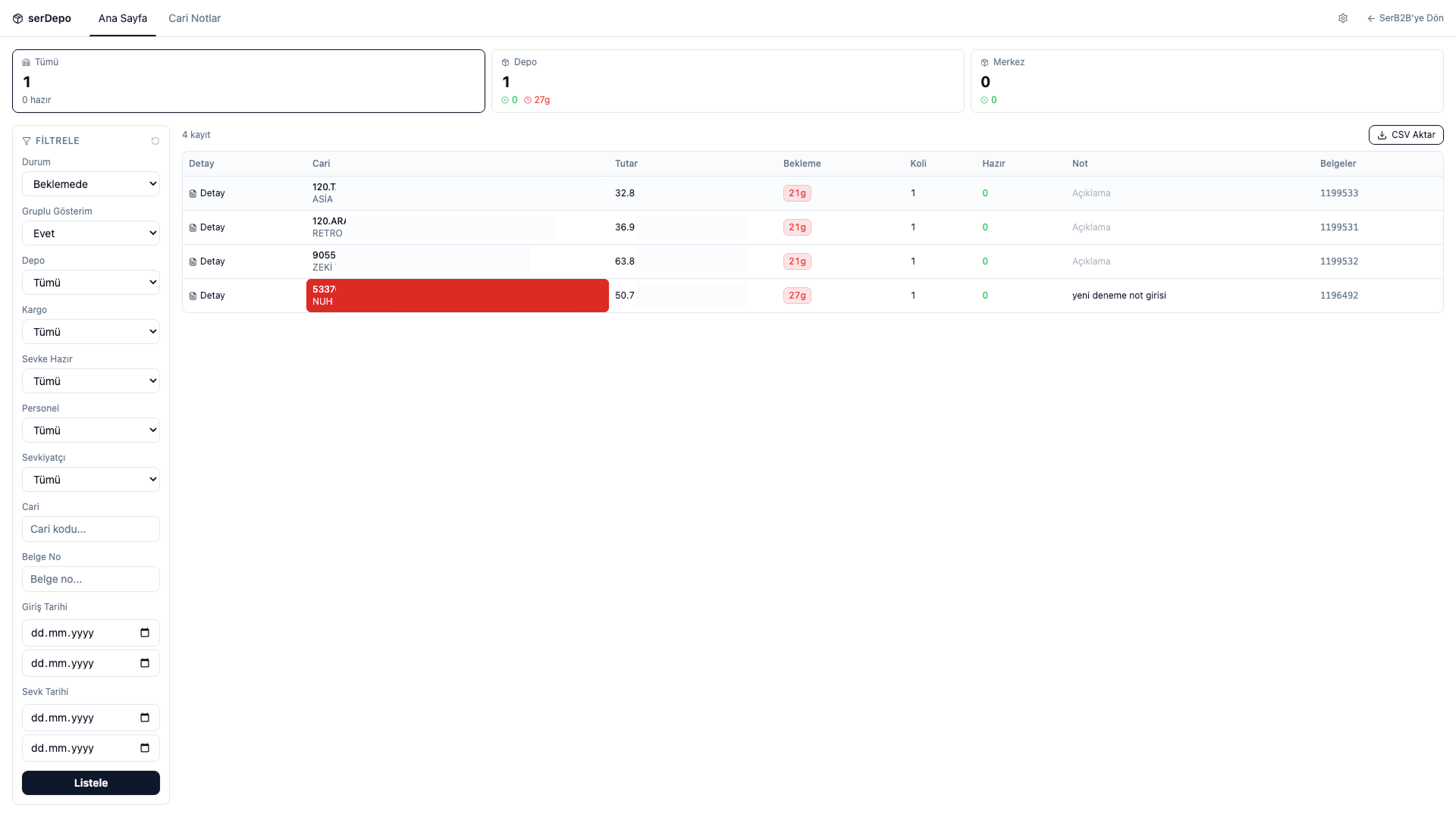
1. Home Page
The Home page shows a summary and list of pending shipments.
The cards at the top display warehouse-based summary information based on the selected status:
- All — the total number of records in the system and how many of them are ready
- Warehouse — the number of records at the Warehouse location; how many are ready and how many have exceeded the waiting period
- Central — the number of records at the Central location and how many of them are ready
The table below lists each record row by row:
- Detail — opens the shipment detail for the record
- Customer — the customer account code and name the order belongs to
- Amount — the order amount
- Waiting — how many days the box has been waiting in the warehouse (records waiting for a long time are highlighted in red)
- Boxes — the number of boxes
- Ready — the number of boxes marked ready for shipment
- Note — displays any note attached to the customer account, if present
- Documents — the related document number
You can export the list using the Export CSV button.
2. Filter the List
Use the filter panel on the left to narrow down the list as needed:
- Status — filters by status, such as pending or shipped
- Grouped View — groups records by customer account
- Warehouse — filters by a specific warehouse location
- Carrier — filters by shipping carrier
- Ready to Ship — shows only records that have been marked ready for shipment
- Staff — filters by the staff member who processed the record
- Shipper — filters by the person who carried out the shipment
- Customer — searches by customer account code
- Document No — searches by document number
- Entry Date / Shipment Date — filters by a specific date range
After selecting your filters, click the List button.
3. Review a Pending Shipment
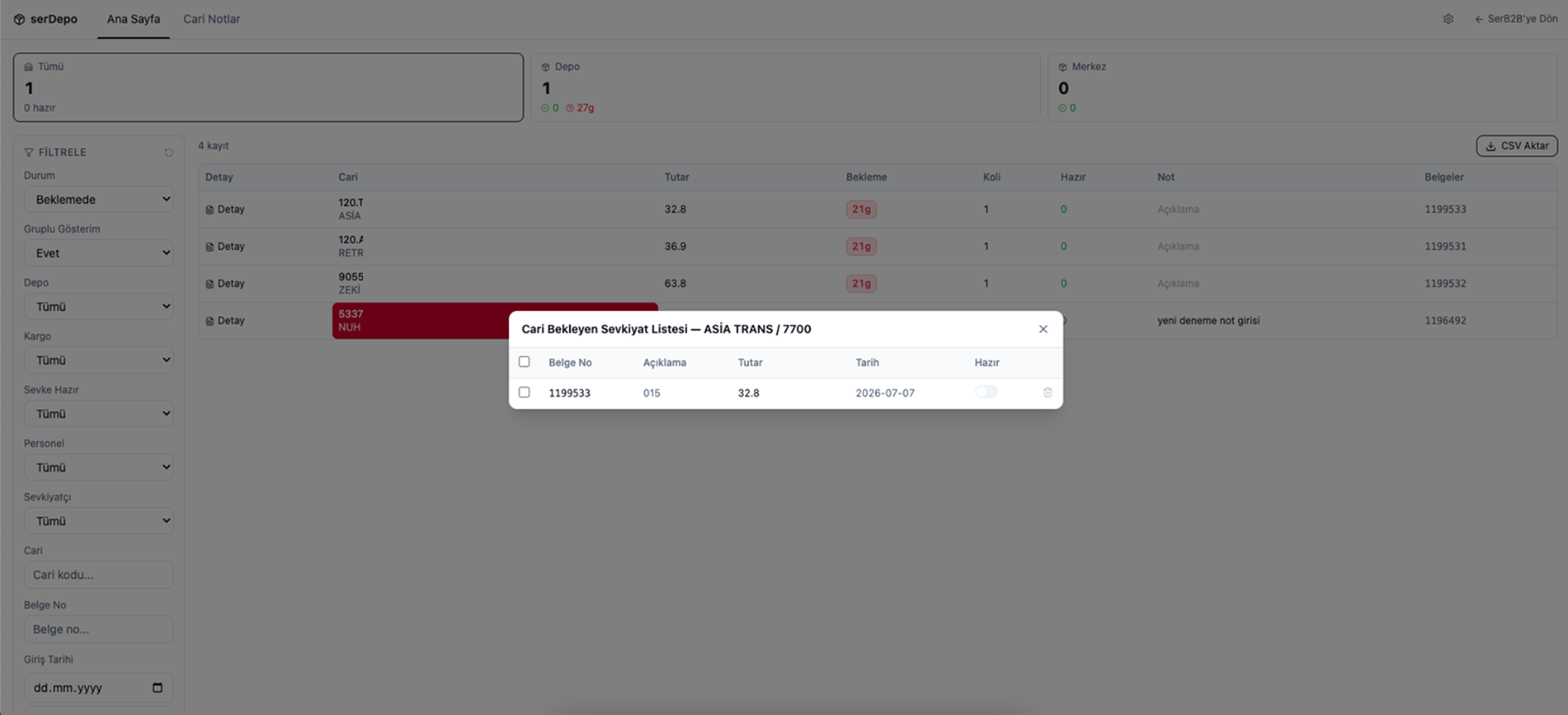
Clicking the Detail button on a customer account's row opens the list of pending shipments for that customer account:
- Document No — the document number related to the shipment
- Description — the description attached to the document
- Amount — the document amount
- Date — the date the document was created
- Ready — a toggle showing whether the box is ready for shipment
You can check the box on the left of a row to perform bulk actions, turn on the Ready toggle to mark a box as ready for shipment, or use the trash icon to delete a record.
4. Customer Notes
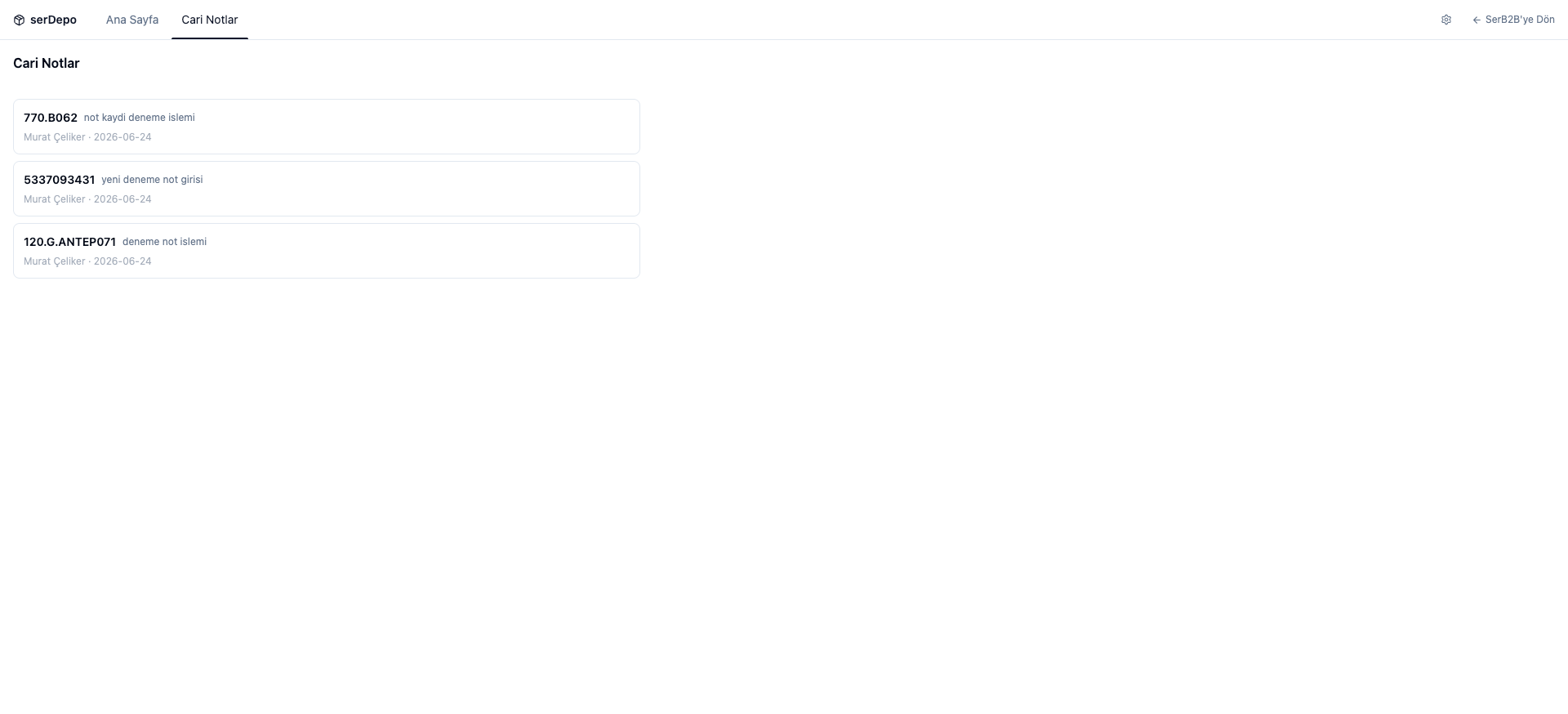
The Customer Notes tab lists the history of notes entered for customer accounts. Each note card shows the related customer account code, note content, the staff member who entered it, and the date. This lets you look back at special instructions previously given for a customer account (for example, a request to ship on a specific date).
5. Warehouse Definitions
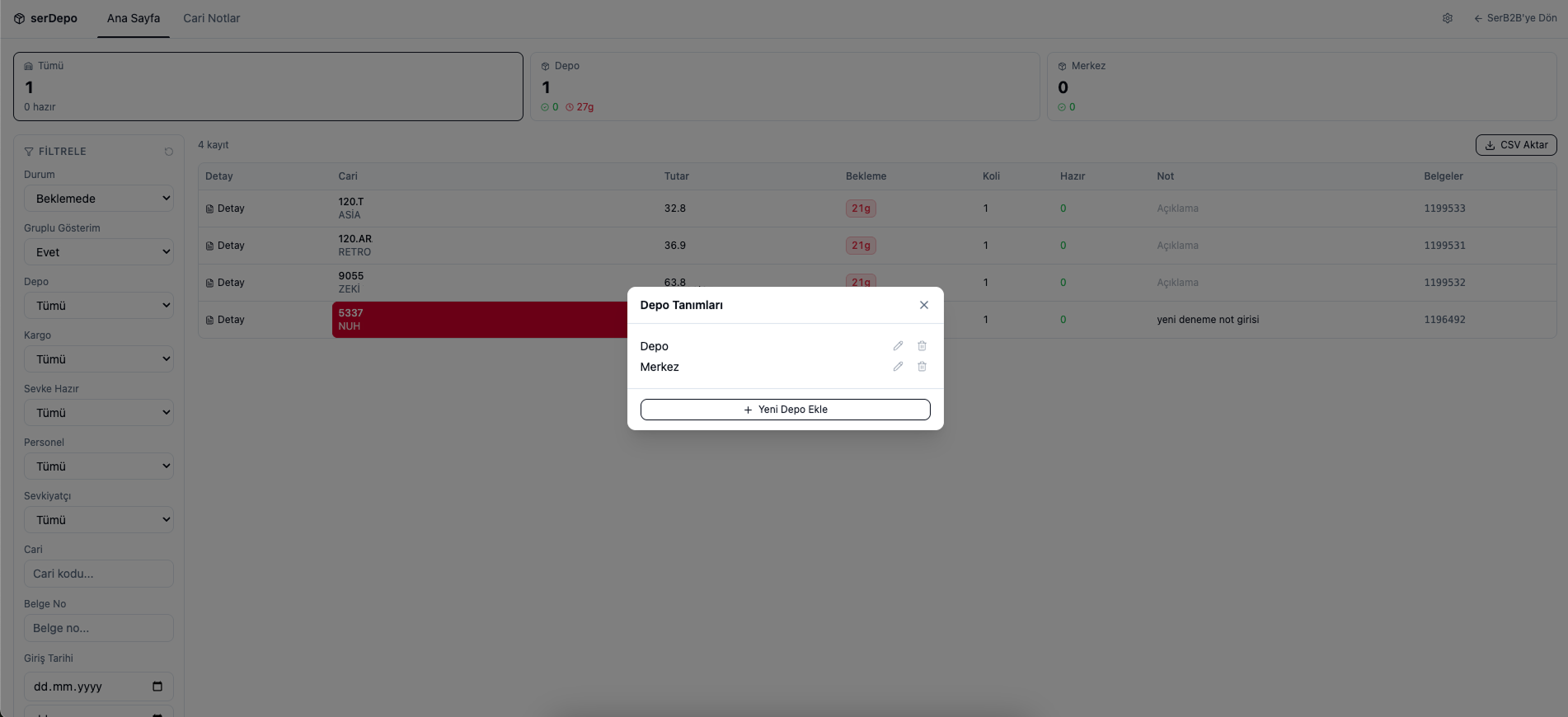
Click the gear (settings) icon in the top right to open the Warehouse Definitions window. From this window you can:
- View the warehouses defined in the system (e.g. Warehouse, Central)
- Edit an existing warehouse definition using the pencil icon
- Delete a warehouse definition using the trash icon
- Define a new warehouse location using the Add New Warehouse button
Contact and Support
If you encounter any issues or need assistance, you can contact our support team. We will be happy to help you as soon as possible.