Purchase Invoices
Record the invoices for products you purchase from suppliers and automatically process stock entries into the warehouse. When creating an invoice, you select which warehouse the stock will be entered into; once you save the invoice and receive the goods, the system automatically updates the stock in the selected warehouse.
To access this page; Admin Panel > Warehouse Management > Purchase Invoices

The list includes ID, invoice number, supplier, warehouse, status, grand total, invoice date, created by, record date, and a Detail button for each invoice.
Invoice statuses are as follows:
- Received — invoice approved, stock entered into the warehouse
- Cancelled — invoice has been cancelled
1. Creating a New Purchase Invoice
Click the New Purchase Invoice button in the top right.
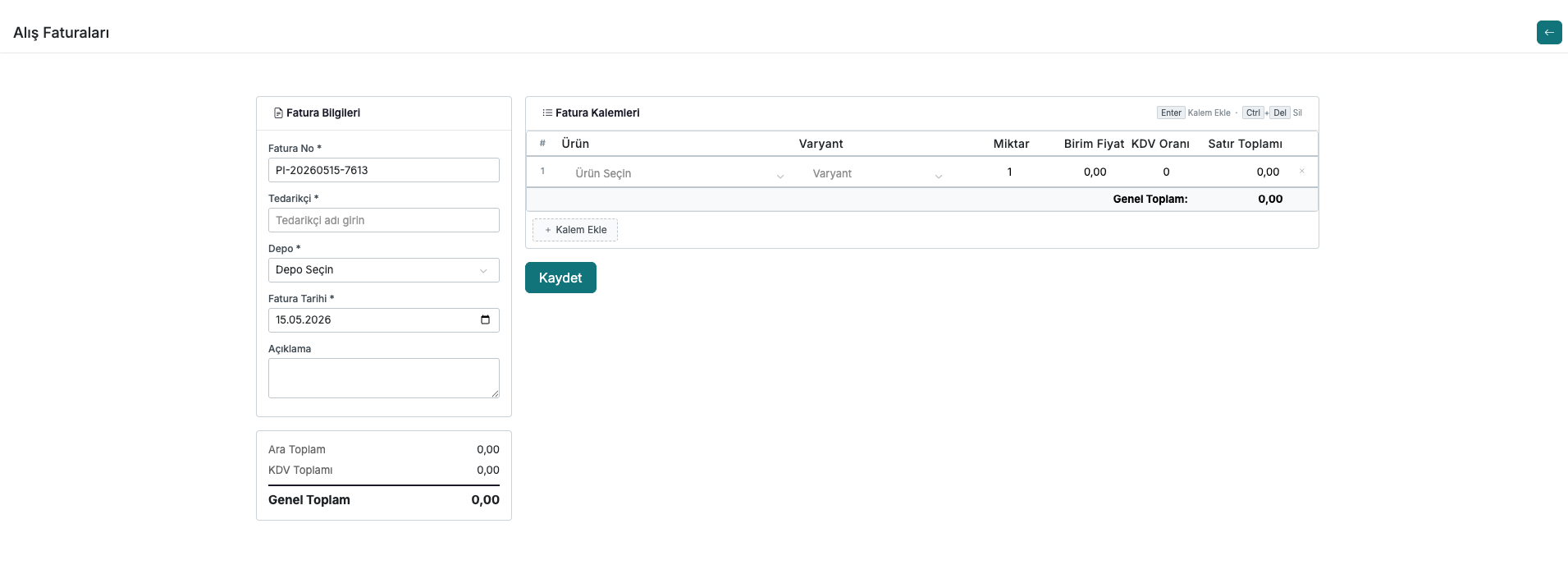
In the Invoice Information card on the left, the invoice number is assigned automatically. Enter the supplier name, select which warehouse the stock will be entered into, specify the invoice date, and optionally add a description.
In the Invoice Items section on the right, add product lines using the + Add Item button or the Enter shortcut. For each line, specify the product, variant, quantity, unit price, and VAT rate; the line total is calculated automatically.
You can use the Ctrl + Del shortcut to remove a line. The Subtotal, VAT Total, and Grand Total at the bottom left update in real time. Once all information has been entered, click the Save button.
2. Invoice Detail
By clicking the Detail button on any invoice in the list, you can view all information related to that invoice.
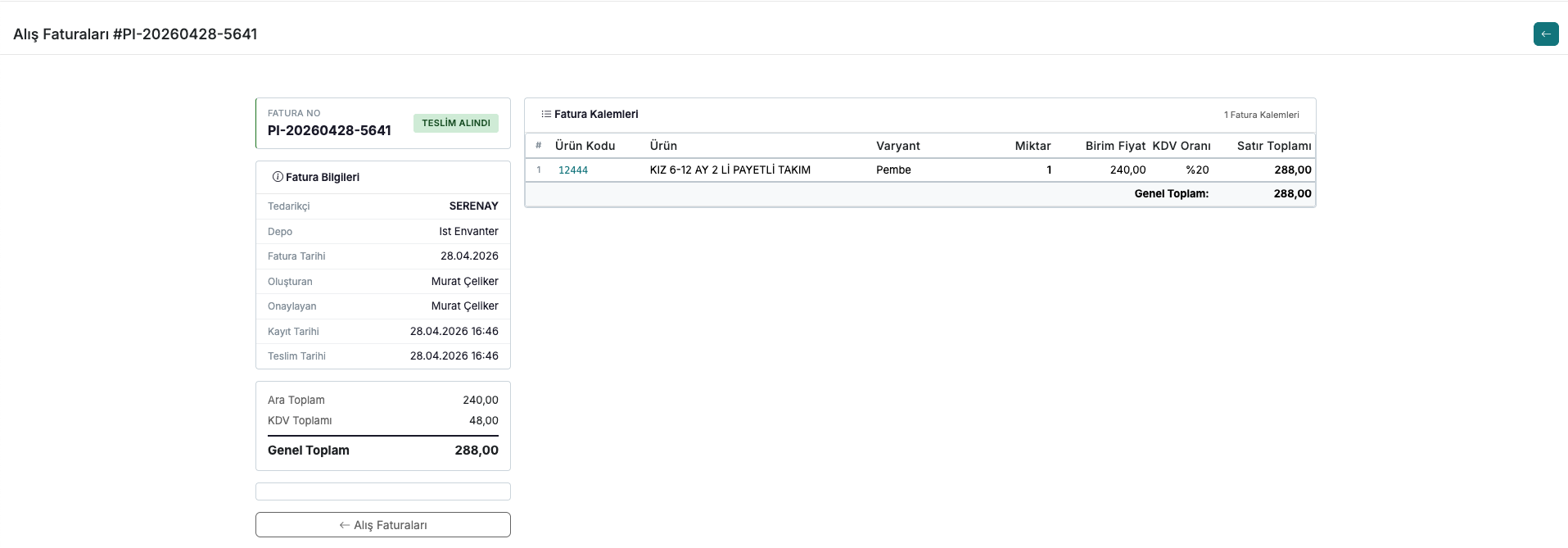
The left card displays the invoice number and status, supplier, warehouse, invoice date, created by, approved by, record date, and delivery date.
The right card lists the invoice items with product code, product name, variant, quantity, unit price, VAT rate, and line total. The Subtotal, VAT Total, and Grand Total are shown at the bottom of the card.
Contact and Support
If you encounter any issues or need assistance, you can contact our support team. We will be happy to help you as soon as possible.