Cart Campaigns
Cart Campaigns are a powerful marketing tool you can use to encourage your customers to shop more. You can automatically define a percentage discount or a gift product for orders above a certain cart amount; or create a special coupon code for your customers.
With this feature, you can tailor your campaigns to specific customer groups, set validity dates, and define priority order.
To access this tab; Admin Panel > Marketing > Cart Campaigns
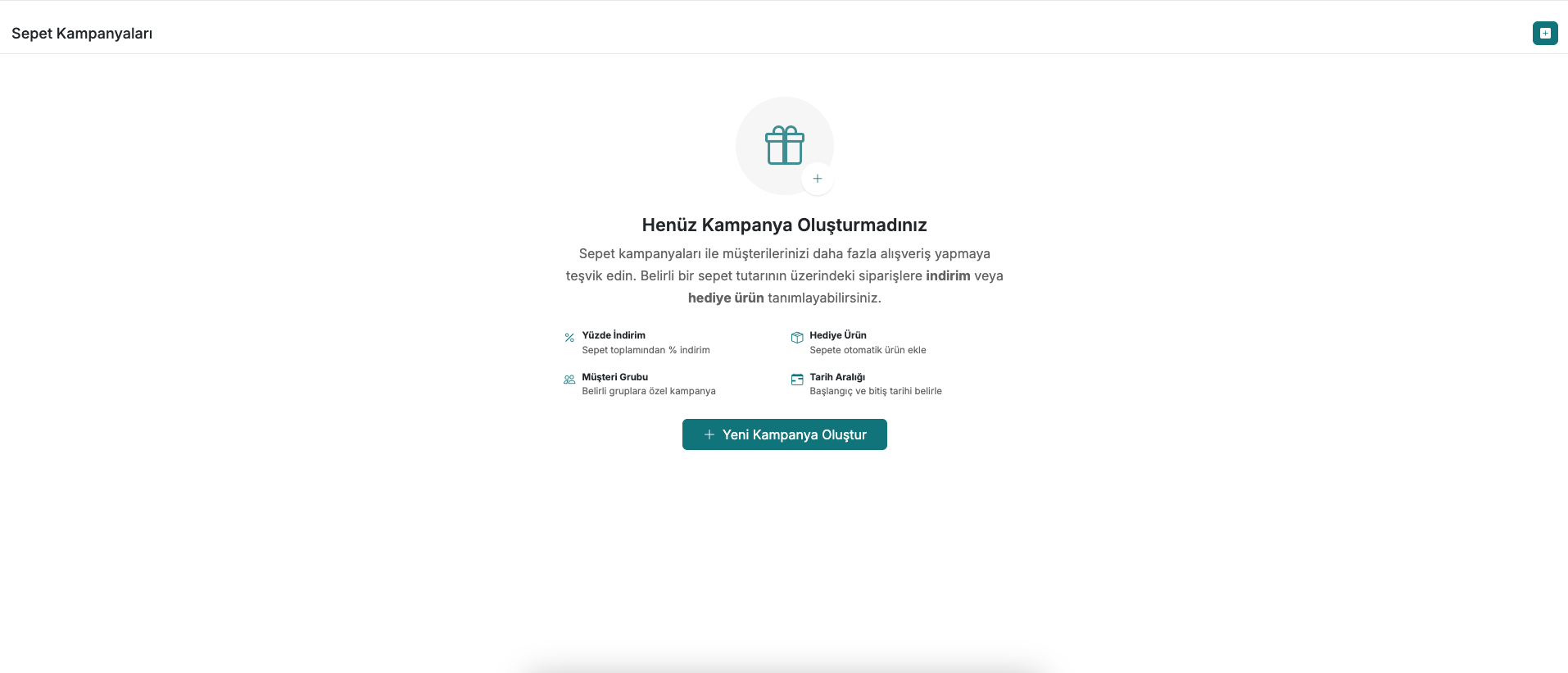
Creating a New Campaign
To create a campaign, click the "+ Create New Campaign" button on the page. You will be presented with three different campaign types:
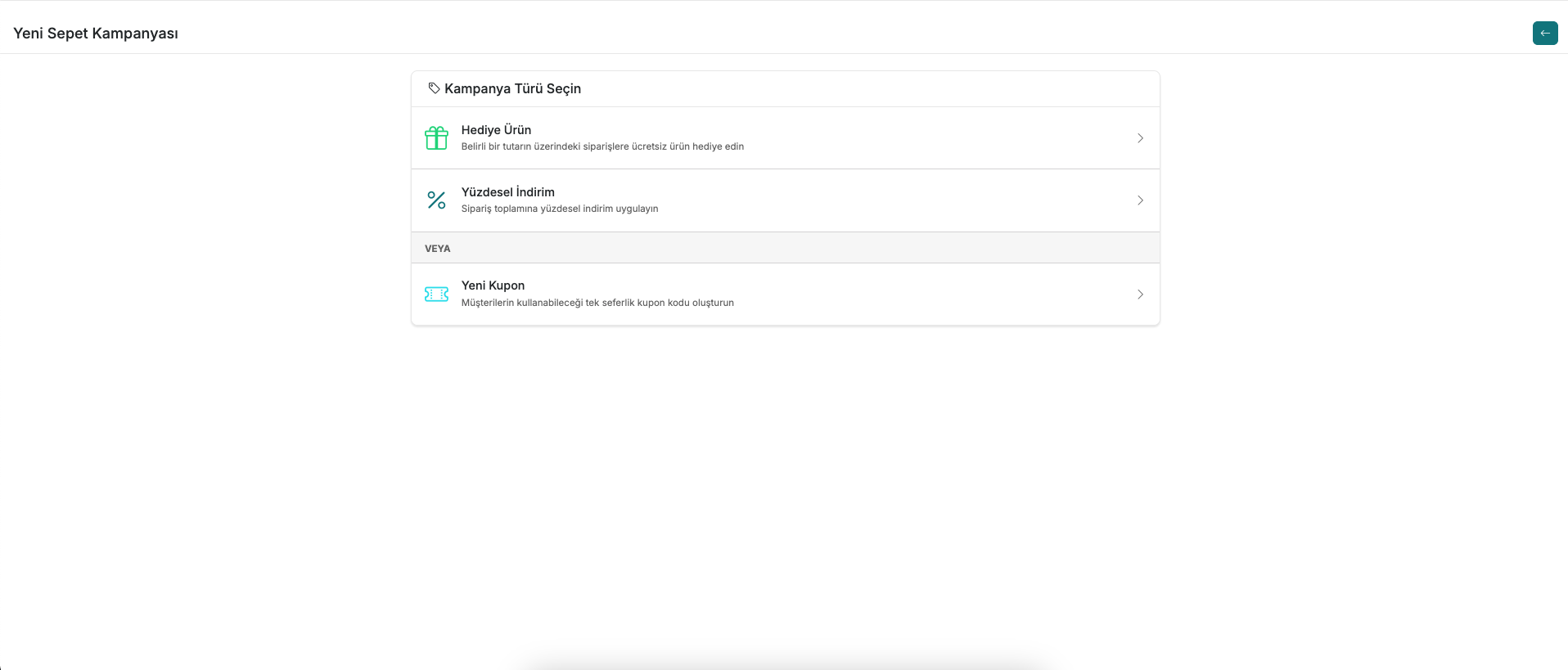
| Campaign Type | Description |
|---|---|
| Gift Product | Give a free product to orders above a certain cart amount |
| Percentage Discount | Apply a percentage discount to the order total |
| New Coupon | Create a one-time coupon code that customers can use |
1. Gift Product Campaign
Ensures that a free product is automatically added to the cart when your customers shop above a certain amount. For example, a campaign such as "Surprise 1 Gift Product for Shopping Worth 3,000 TL" can be set up.
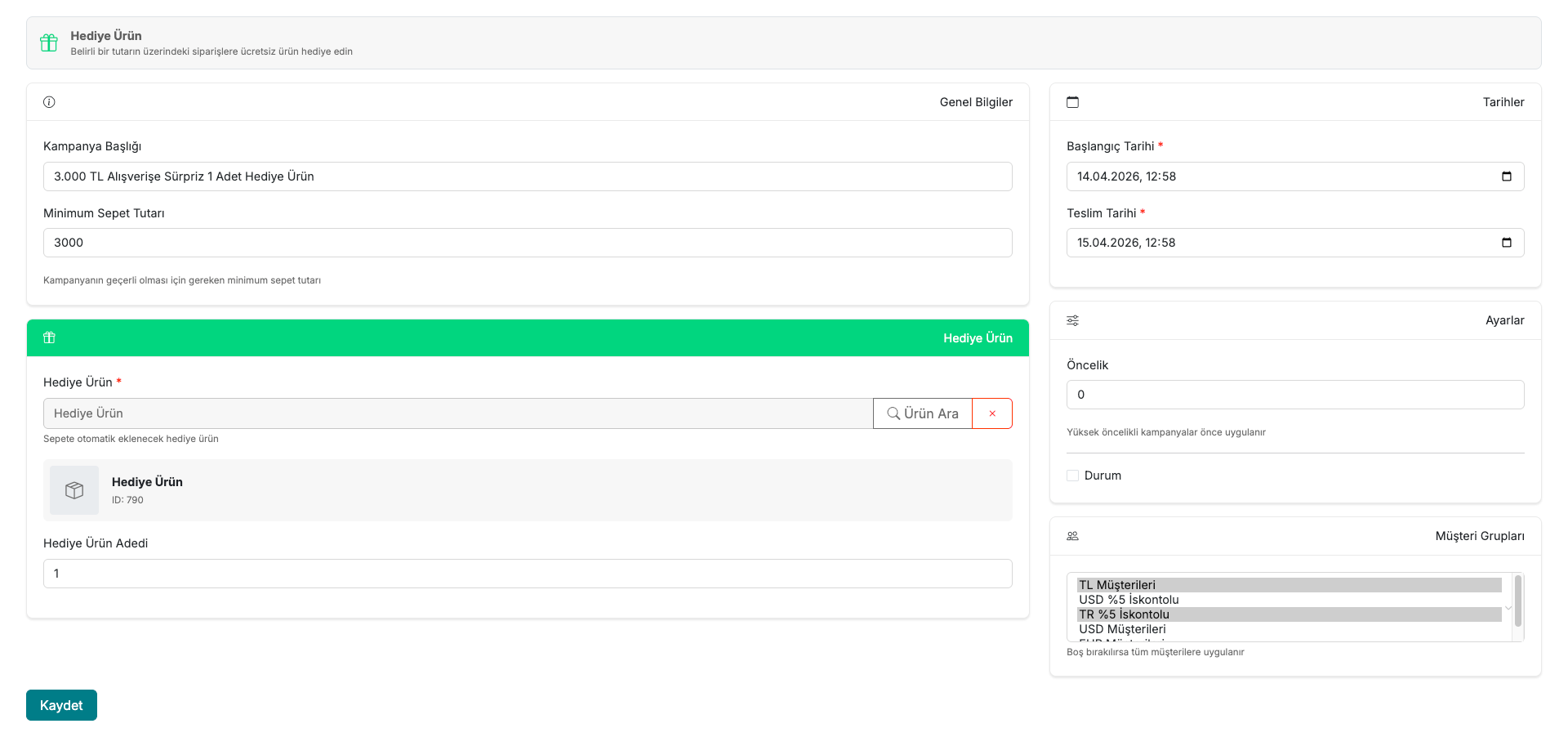
Fields to fill in:
- Campaign Title — Enter the name of the campaign. (e.g., Surprise 1 Gift Product for Shopping Worth 3,000 TL)
- Minimum Cart Amount — Enter the minimum cart amount required to activate the campaign. (e.g., 3000)
- Gift Product — Use the "Search Product" button to select the gift product that will be automatically added to the cart.
- Gift Product Quantity — Specify how many gift products will be added.
- Start / End Date — Select the date range during which the campaign will be valid.
- Priority — If multiple campaigns are active, determines which campaign is applied first. Higher priority campaigns are applied first.
- Status — You can set the campaign to active or inactive.
- Customer Groups — You can make the campaign specific to certain customer groups. If left blank, it applies to all customers.
2. Percentage Discount Campaign
Allows you to apply a percentage discount to orders above a certain cart amount. It is ideal for encouraging your customers to shop at higher amounts. For example, a campaign like "5% Discount on Orders Over 3000 TL" can be easily set up.
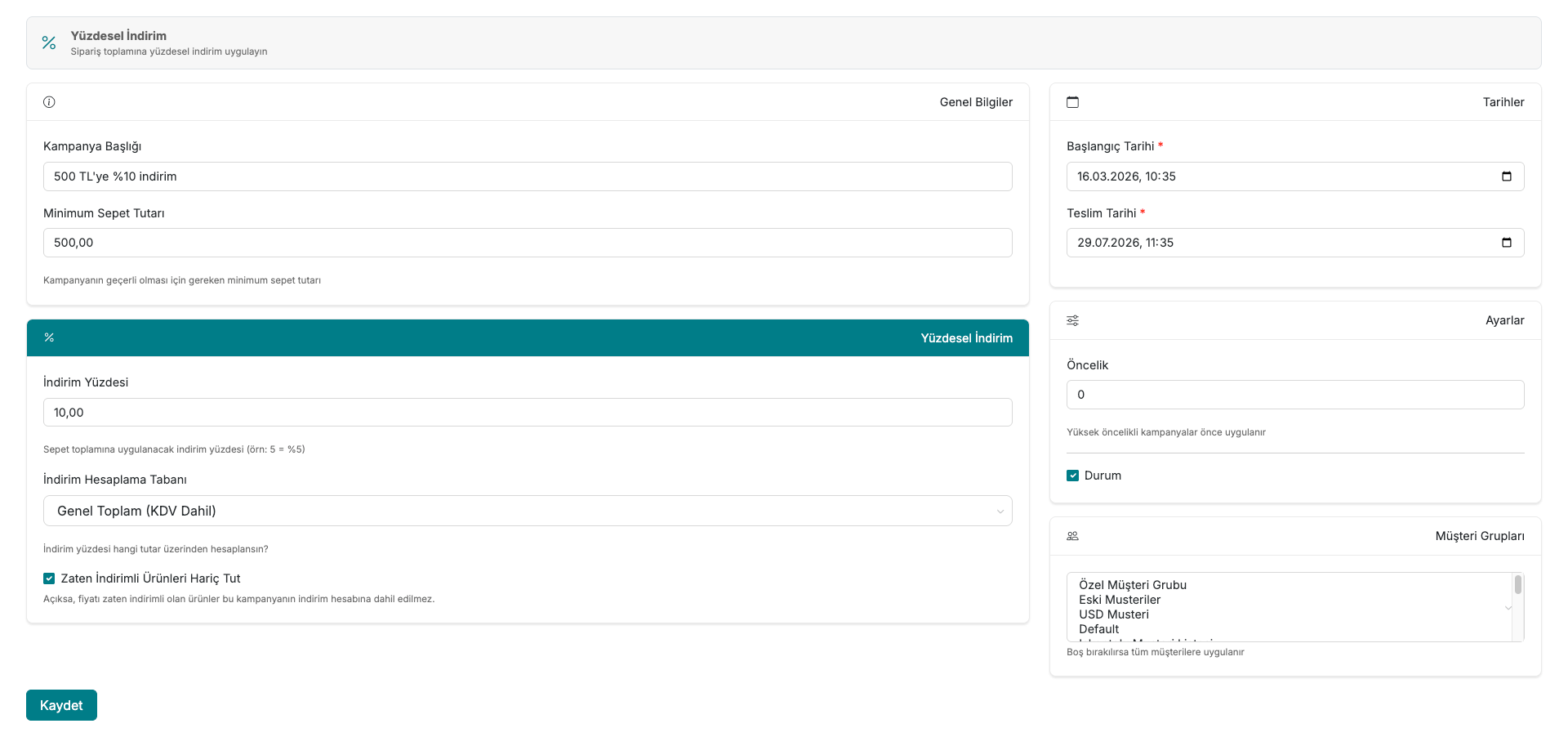
Fields to fill in:
- Campaign Title — Enter the name of the campaign. (e.g., 5% Discount on Orders Over 3000 TL)
- Minimum Cart Amount — Set the minimum amount at which the discount kicks in. (e.g., 3000)
- Discount Percentage — Enter the discount percentage to be applied to the cart total. (e.g., 5 → 5% discount)
- Start / End Date — Select the date range during which the campaign will be valid.
- Priority — If multiple campaigns are active, determines which one is applied first. Higher priority campaigns are applied first.
- Status — You can set the campaign to active or inactive.
- Customer Groups — You can define it as specific to certain groups, or leave it blank to make it open to all customers.
3. Creating a Coupon
Allows you to create special coupon codes that your customers can enter during their order. You can flexibly set details such as usage limits, per-customer limits, and validity dates.
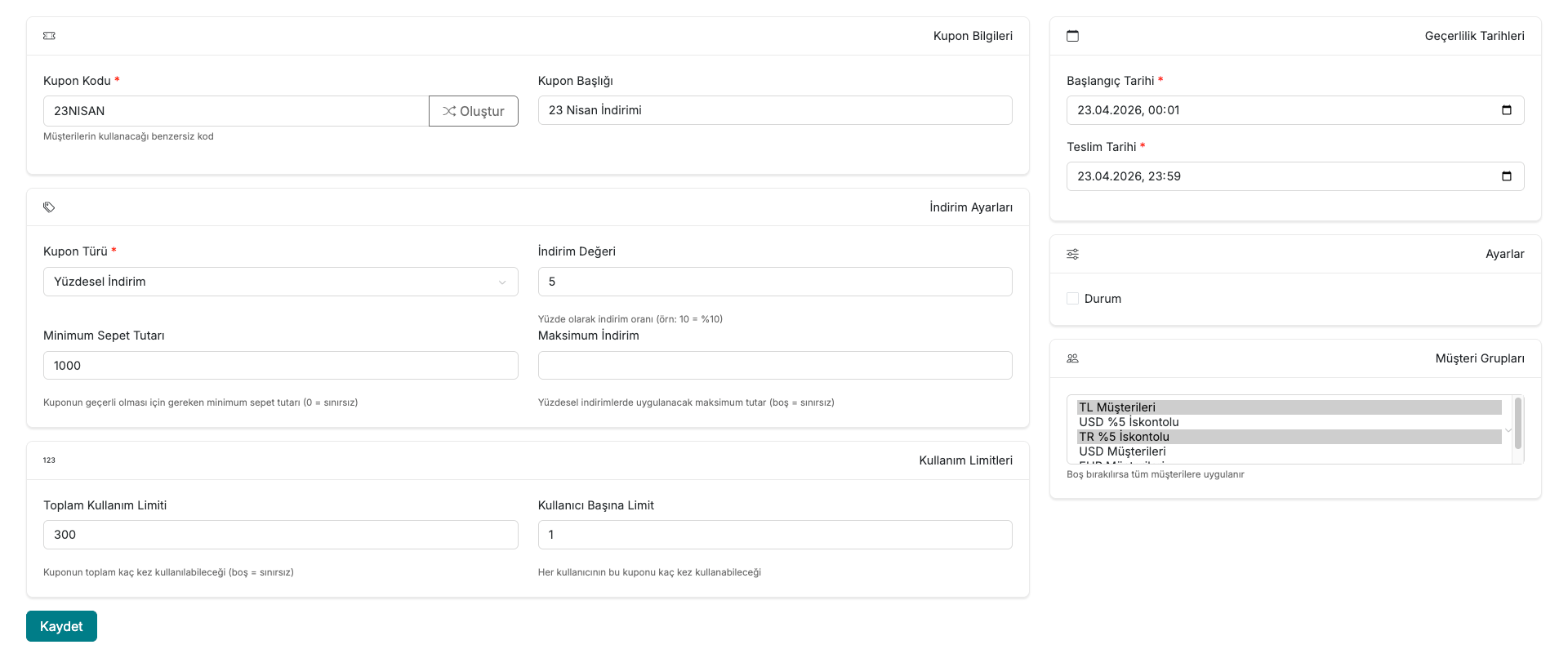
Fields to fill in:
- Coupon Code — Enter the unique code that customers will use, or generate one automatically with the "Generate" button. (e.g., APRIL23)
- Coupon Title — Enter the descriptive name of the coupon. (e.g., April 23 Discount)
- Coupon Type — Choose one of the options: Percentage Discount or Fixed Discount.
- Discount Value — Enter the discount rate or amount. (e.g., 5 → 5% discount)
- Minimum Cart Amount — Enter the minimum cart amount required for the coupon to be valid. (e.g., 1000)
- Maximum Discount — You can set the maximum discount amount to be applied for percentage discounts. If left blank, it is unlimited.
- Total Usage Limit — Enter how many times the coupon can be used in total. (e.g., 300)
- Per User Limit — Set how many times each customer can use this coupon. (e.g., 1)
- Validity Dates — Select the start and end dates during which the coupon will be active.
- Status — You can set the coupon to active or inactive.
- Customer Groups — You can make the coupon specific to certain customer groups. If left blank, it is open to all customers.
Contact and Support
If you encounter any issues or need assistance, you can contact our support team. We will be happy to assist you as soon as possible.