All Customers
In the serB2B platform, you can list all customers and offer each one personalized pricing, tax settings, and homepage design. This enables a tailored shopping experience for your customers, allowing you to easily manage customer details from your admin panel.
1. Viewing All Customers
To view all active or inactive customers who have been previously approved on your site, navigate to Customers > All Customers from your admin panel.
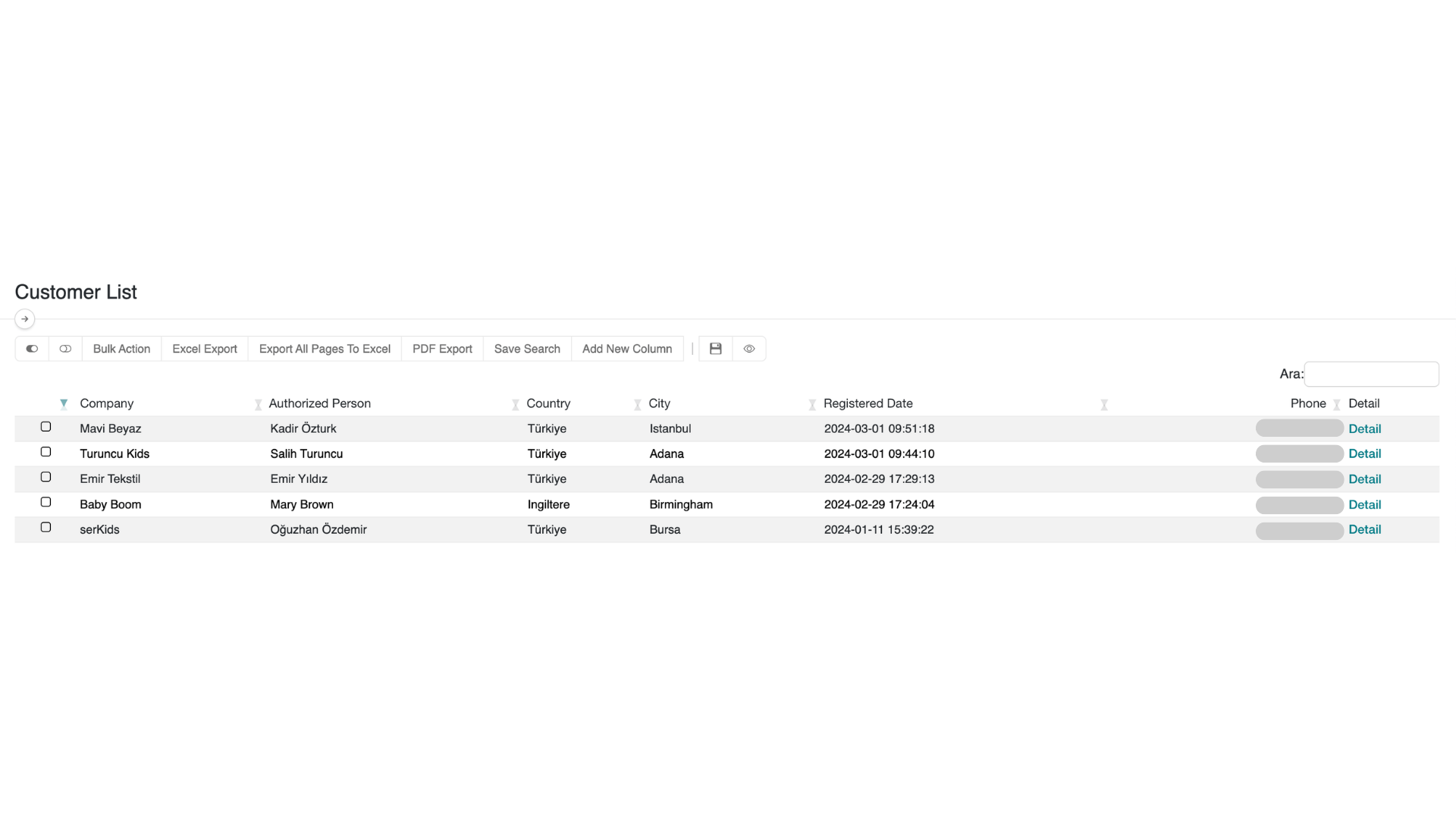
For more information about the action bar above the customer list table, please refer to the Action Bar guide.

2. Viewing Customer Details
To see detailed information about a customer, click on the Details button at the end of the customer record row.
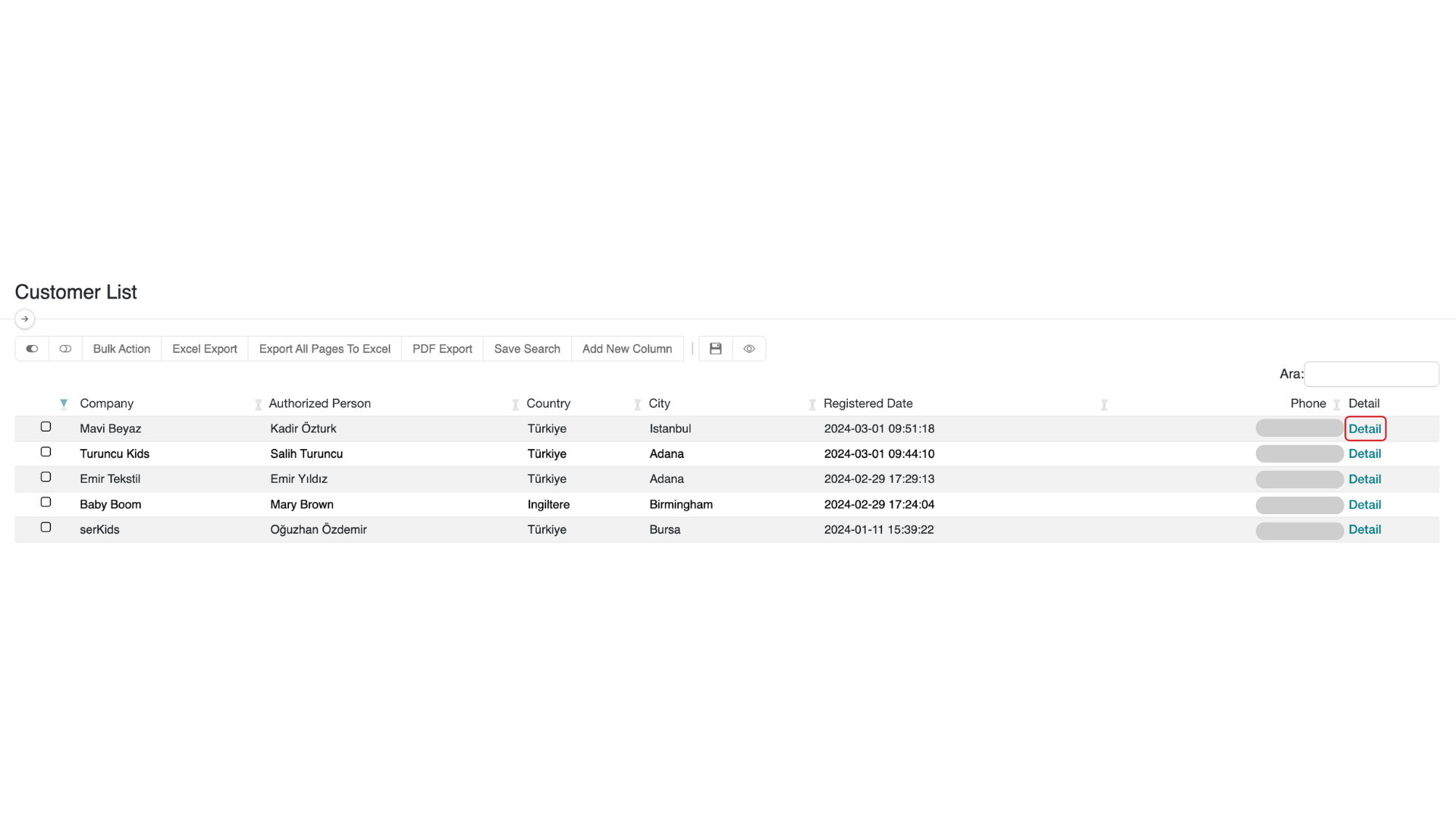
Customer Detail:
3. Customer Details - Actions
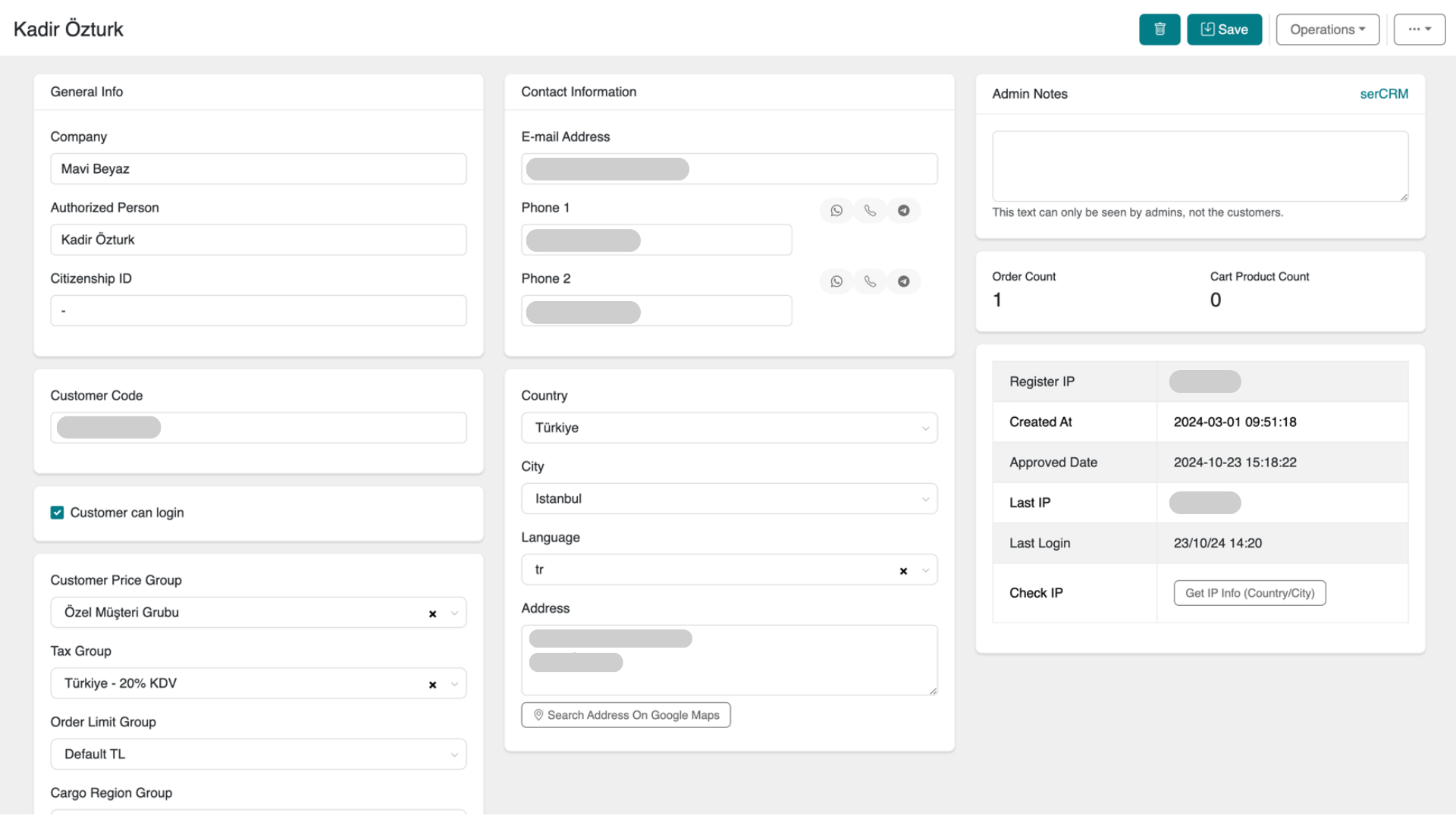
In the customer details page, click on the Actions section located in the upper right corner to access further details about your customer’s activities.
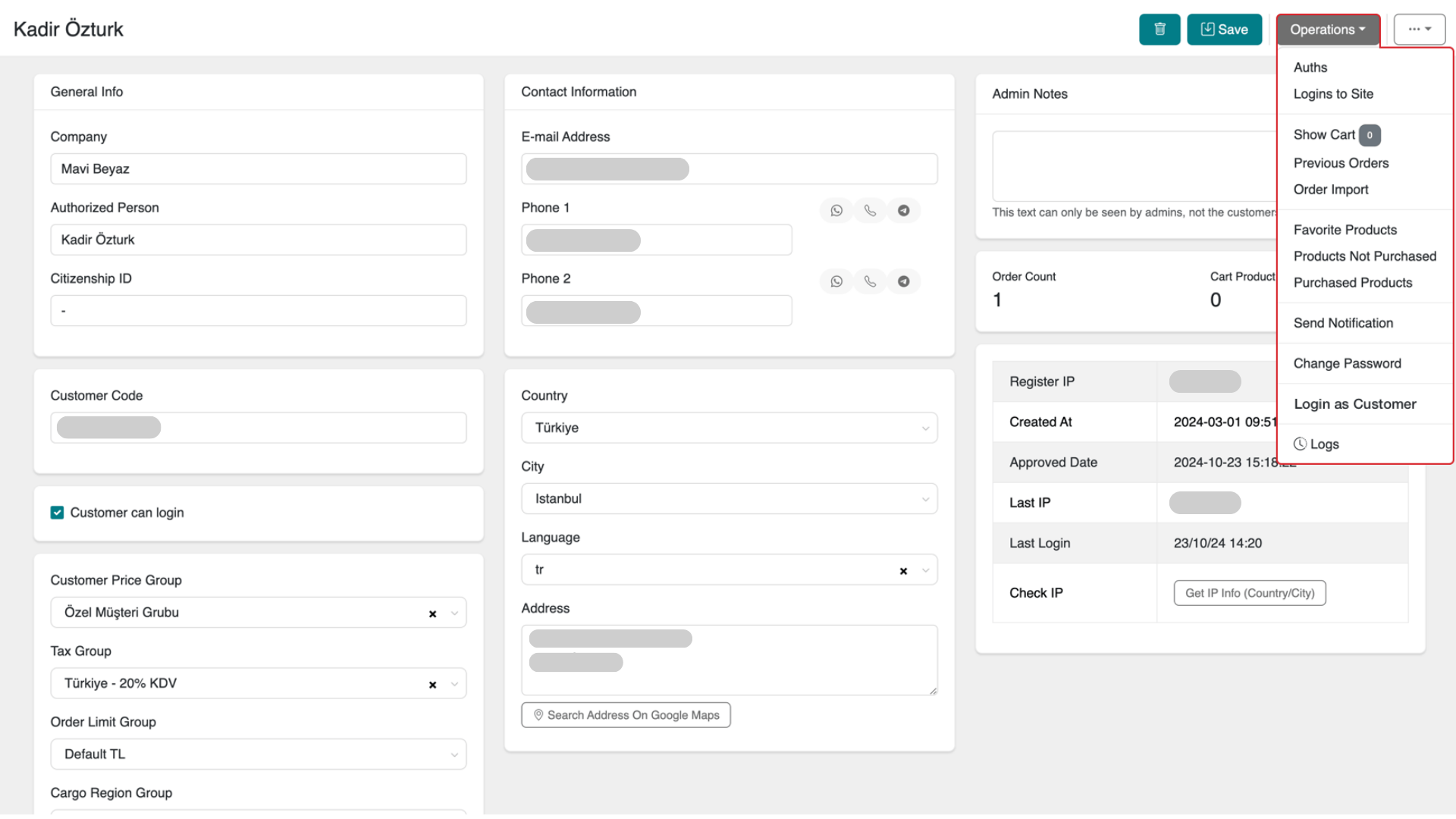
- Auths: Required for admin users only.
- Logins to Site: View the dates and times the customer has visited the site.
- Show Cart: See the number and list of items added to the customer's cart that haven’t been converted to orders.
- Previous Orders: View orders previously placed by the customer on the serB2B system.
- Order Import: Import an order submitted by the customer through other channels by uploading it in .xlsx (Excel) format.
- Favorite Products: View items the customer has added to their favorites on the serB2B system.
- Products not Purchased: List products the customer has not purchased on the serB2B platform.
- Purchased Products: List products purchased by the customer on the serB2B system.
- Send Notification: If your package includes the B2B mobile app, send a direct notification to the customer through the app.
Contact us to purchase a package that includes the serMobile PRO app.
- Change Password: Update the customer’s password.
- Log in as Customer: Log into the serB2B system on behalf of the customer.
- Logs: View detailed logs of the customer's actions.
Frequently Asked Questions (FAQs)
-
Can I allow customers to shop without approval?
No, you must approve customers to shop on your site. -
Can I delete approved customers later?
Yes, you can delete approved customers from the admin panel.
Related Resources
Contact and Support
If you encounter any issues or need assistance, feel free to contact our support team. We’ll be happy to assist you as soon as possible.